Enabling MDM on Mac
Last updated: January 13, 2026
Enabling Mobile Device Management (MDM) ensures your organization can securely manage and protect sensitive data on your device.
If the device is lost, stolen, or compromised, authorized administrators can remotely enforce security settings, deploy necessary updates, and, if required, lock or wipe the device to prevent unauthorized access.
1. Open the Fleet menu
Click the Mycroft Icon located in your menu bar near your system processes (top-right corner of your screen).

2. Select "My device".
From the dropdown, click “My device” to open the device overview.

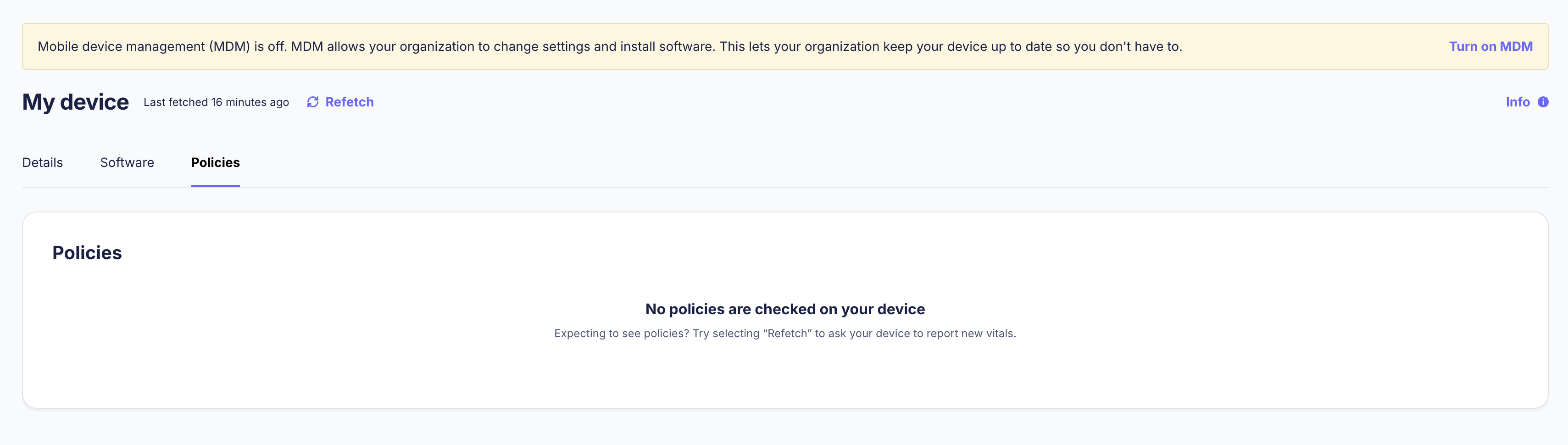
3. Once the page has loaded, Click "Turn on MDM".
Once the page loads, click the “Turn on MDM” button in the yellow notification banner at the top.
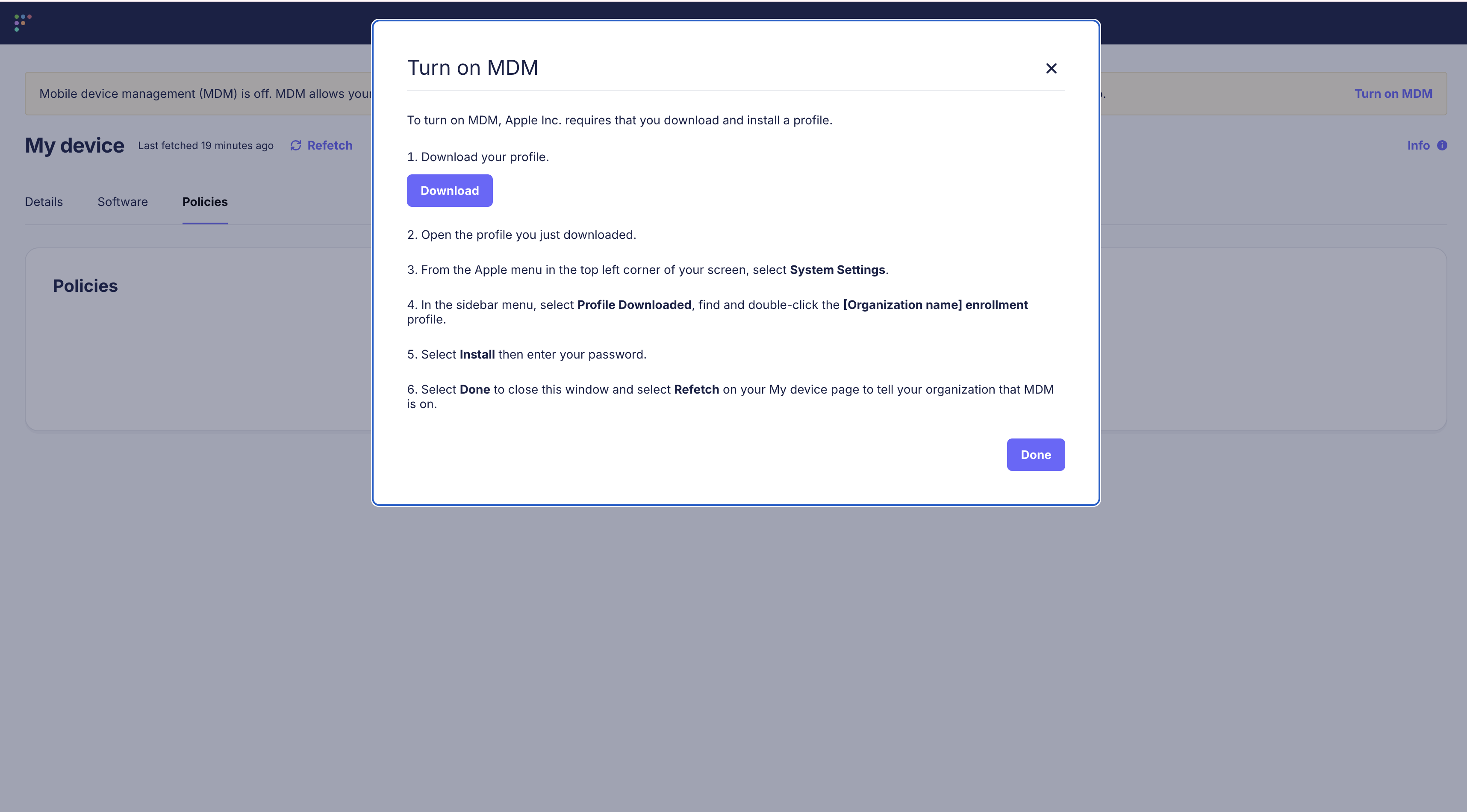
4. Follow the on-screen steps that the application will display to install the profile.
In the pop-up window, click the “Download” button to retrieve your organization’s MDM configuration profile.
5. Install the provided profile from step 4.
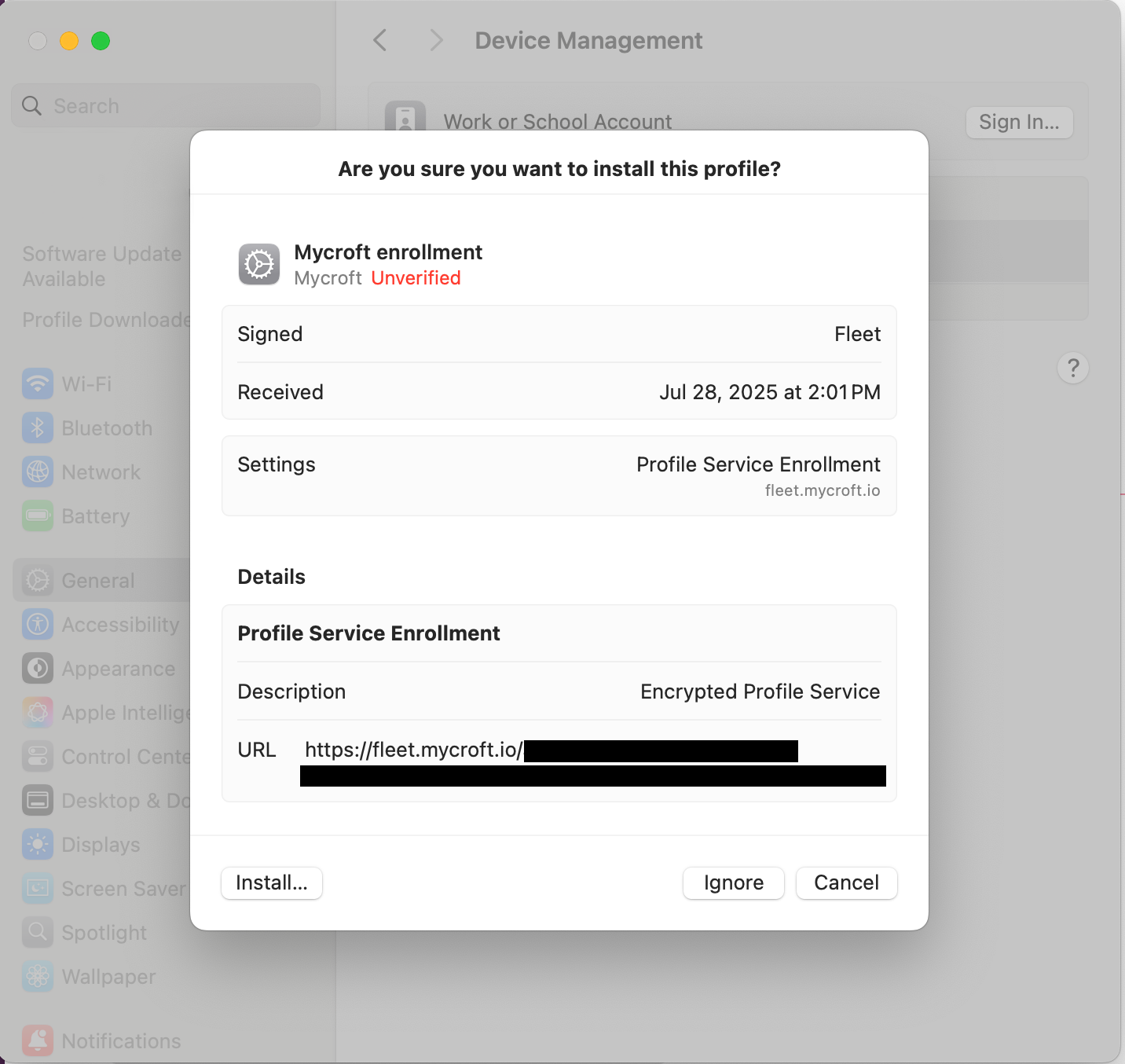
Once the installation is complete, return to the Fleet “My device” screen.
Click “Refetch” to update your device status and confirm that MDM is enabled.