Editing and Saving a Policy
Last updated: March 25, 2026
You edit policy content from within the policy editor, which you open from the Policy detail page.
Opening the editor
To open a draft for editing:
Open the Policy detail page.
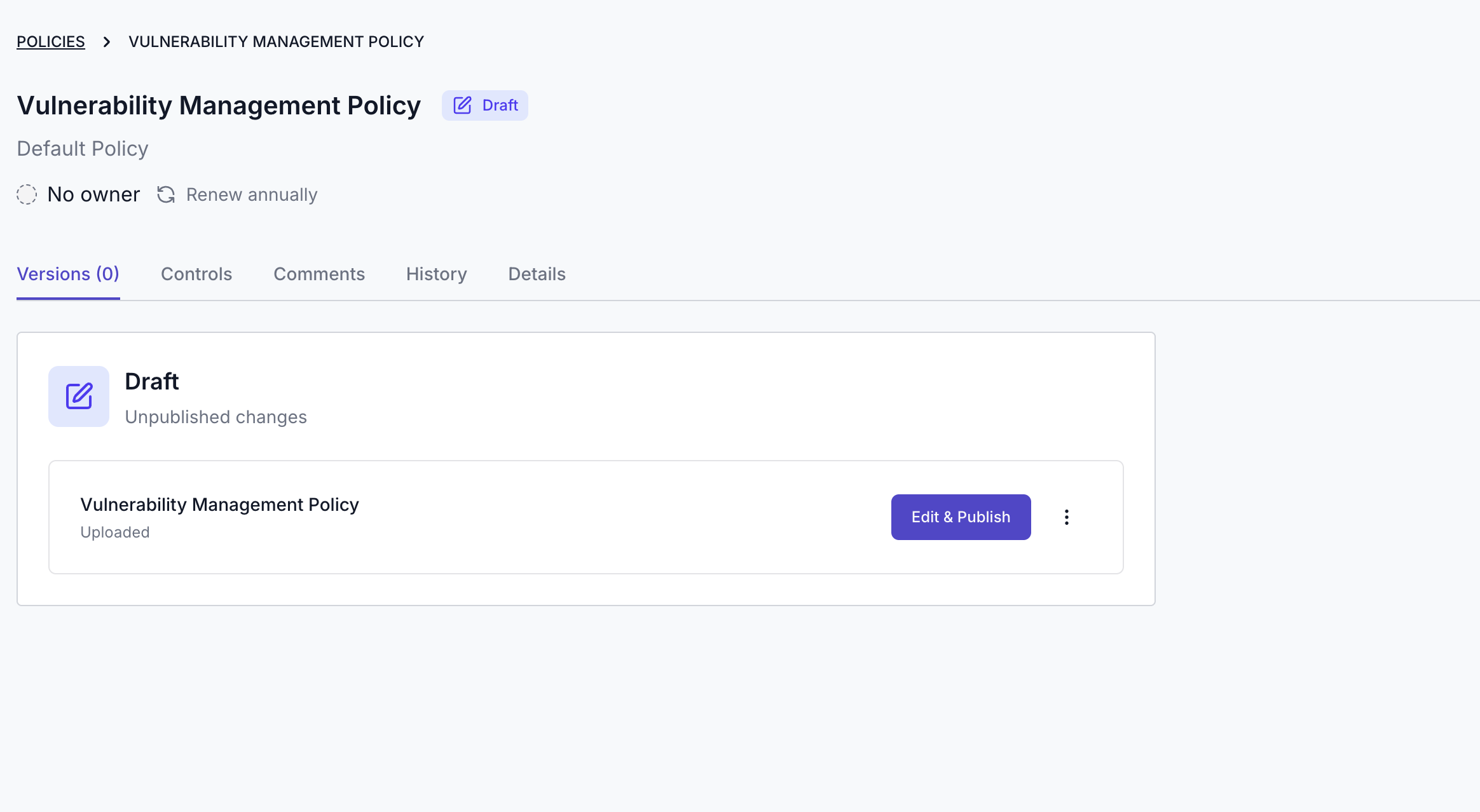
In the Versions tab, find the Draft card.
Select Edit & Publish to open the draft in the editor.
To create a new draft from a published policy:
Open the Policy detail page.
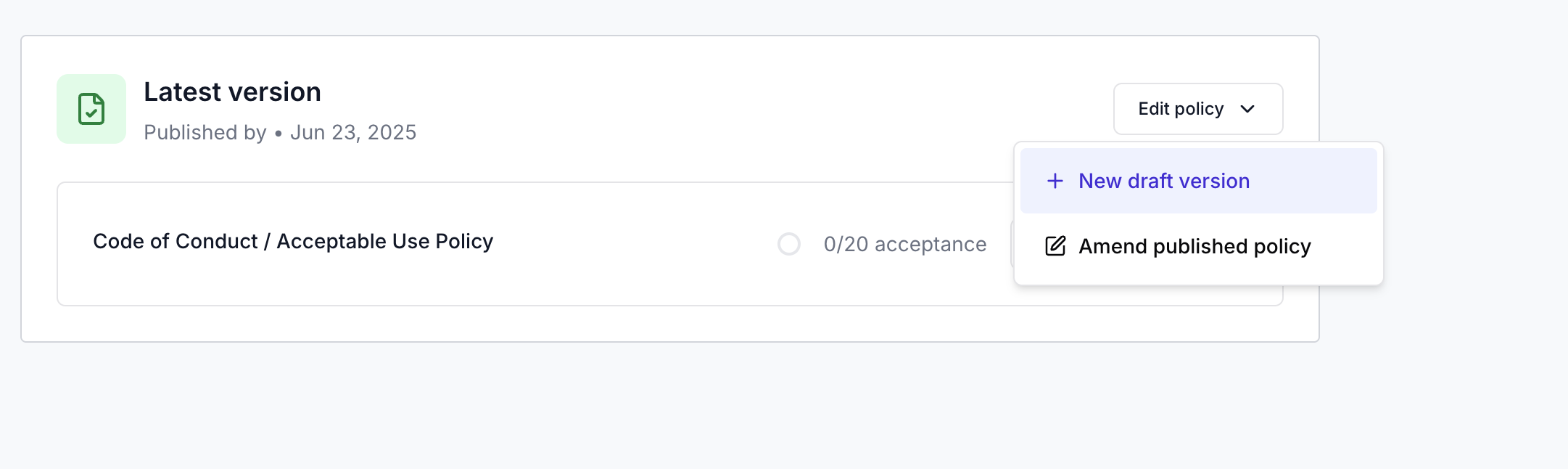
In the Versions tab, open the Edit policy dropdown on the Latest version card.
Select New draft version.
To make small corrections to a published version (amend mode):
Open the Policy detail page.
In the Versions tab, open the Edit policy dropdown.
Select Amend published policy.
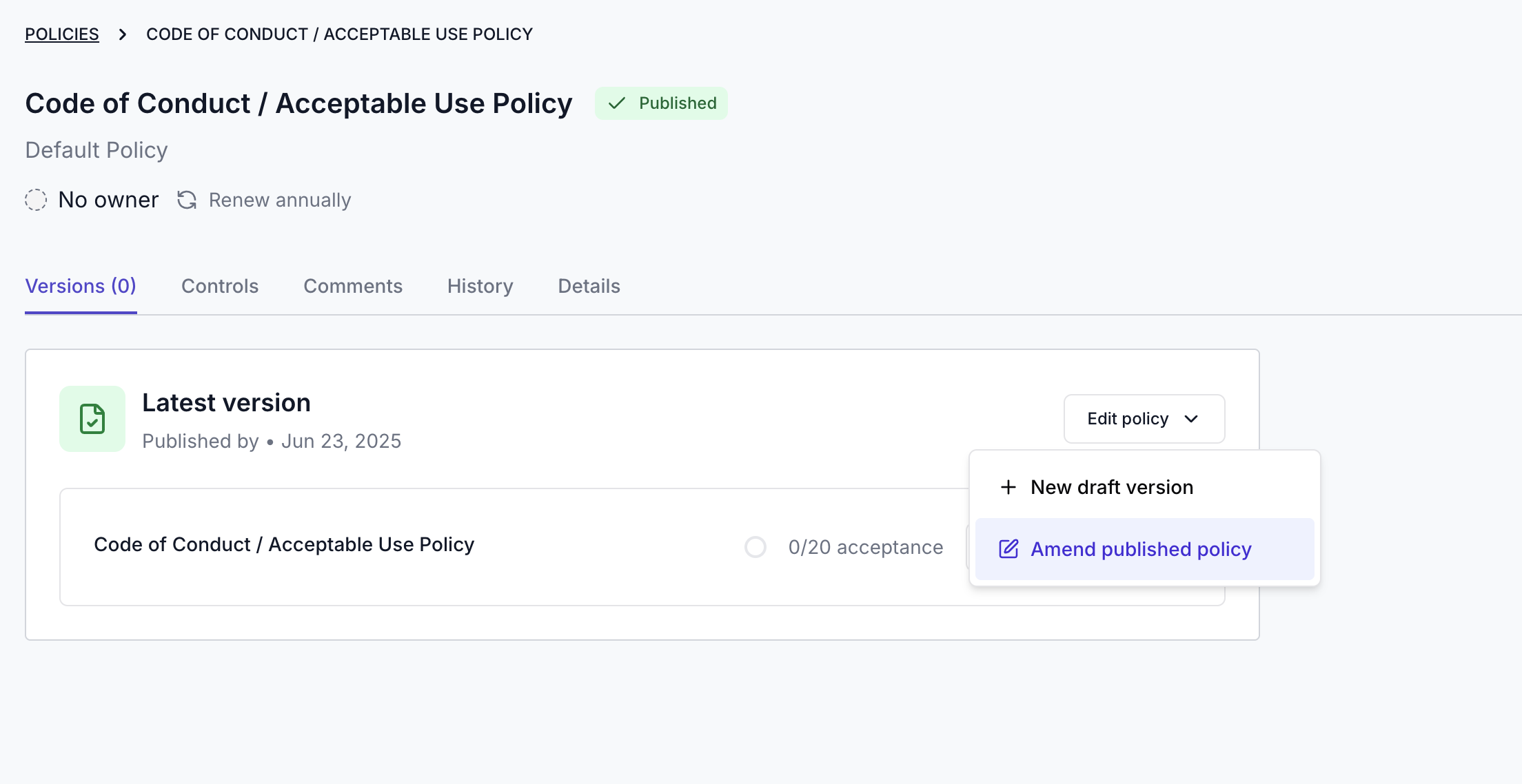
Note: If a draft already exists, the Edit policy dropdown only shows Amend published policy. You must edit or delete the existing draft before creating a new one from the published version.
Working in the editor
The policy editor displays six sections:
Purpose: Why the policy exists, what it covers, and the risks or goals it addresses.
Scope: Who and what the policy applies to, including roles, devices, or environments.
Policy content: The key rules, responsibilities, and expectations defined in this policy.
Compliance: The frameworks or regulations this policy supports or aligns with.
Enforcement: How the policy is enforced and the consequences of non-compliance.
Policy review and modification: How often the policy is reviewed and who is responsible for keeping it up to date.
Each section has a short description to guide you and a rich-text editor where you write or update the content.
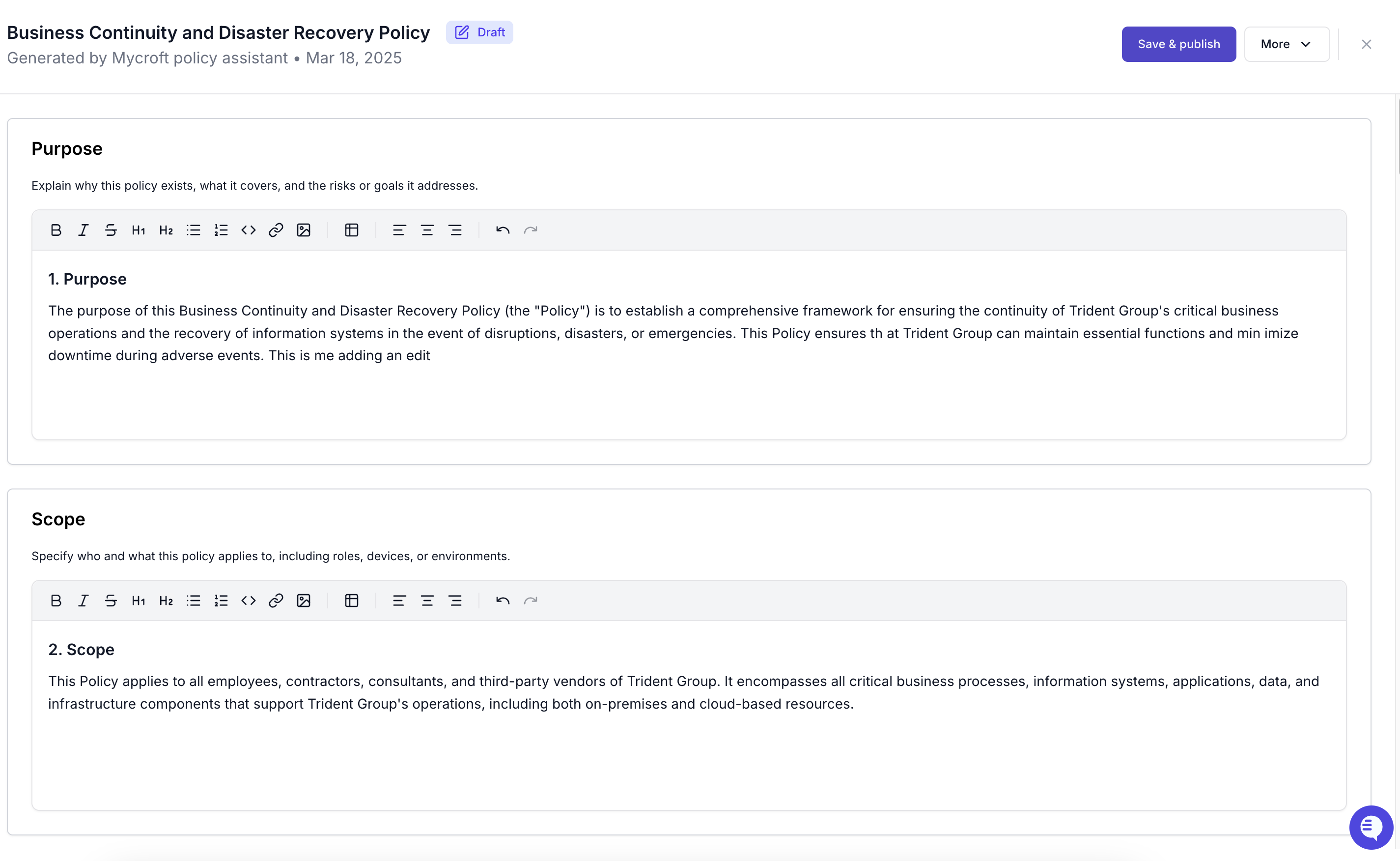
To edit and save a section:
Click in a section's editor and make your changes.
When the banner "This section has unsaved changes" appears in the section header, select Save changes on the right side of that banner.
Repeat for each section you want to update.

To save all sections at once:
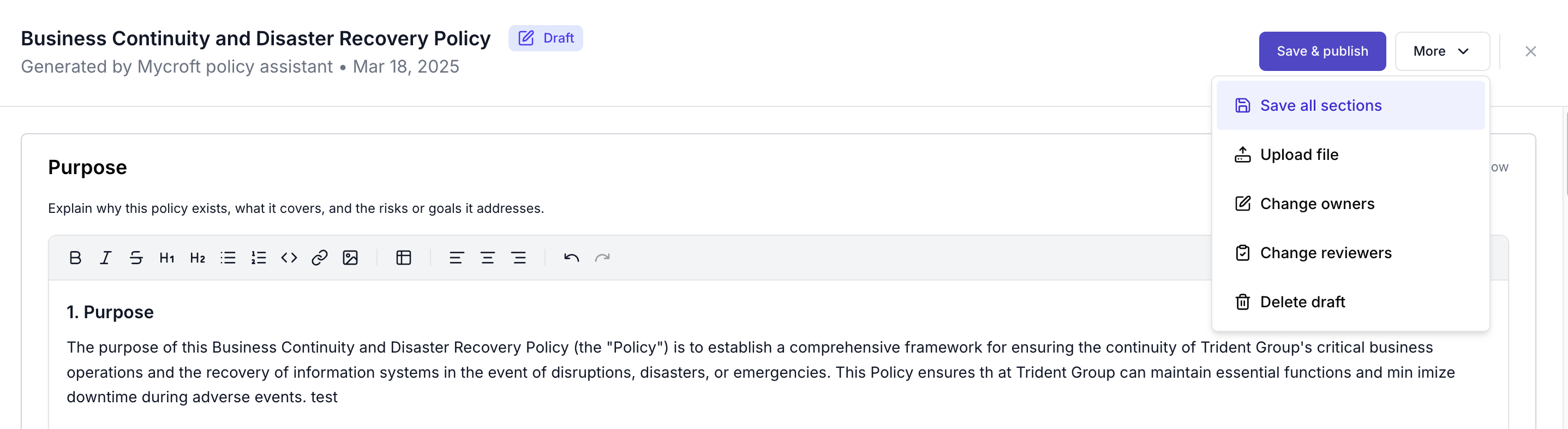
Select More in the editor header and choose Save all sections.
Other editor actions
Select More in the editor header to access the following options:
Upload file: Replace the policy content with a new file upload.
Change owners: Reassign the general/business or security owners.
Change reviewers: Add or update reviewers.
Delete draft: Remove the current draft entirely.
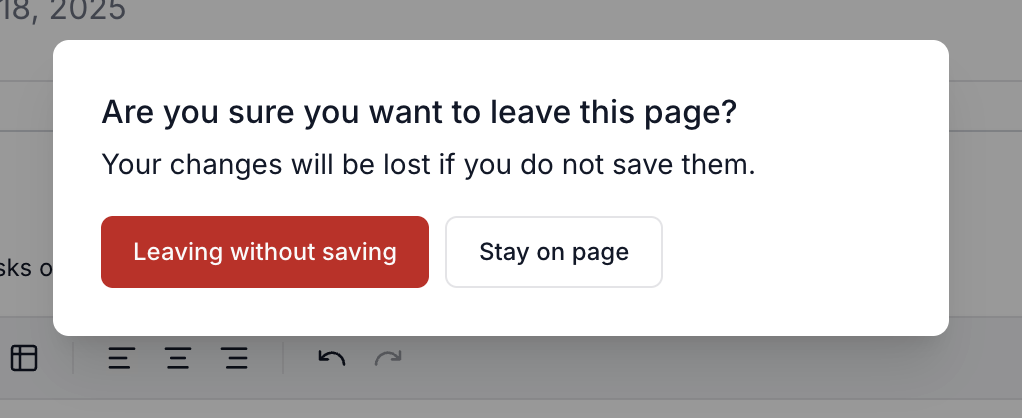
To close the editor without publishing, select × in the header. If you have unsaved changes, Mycroft asks whether you want to discard them.
Editing uploaded policies
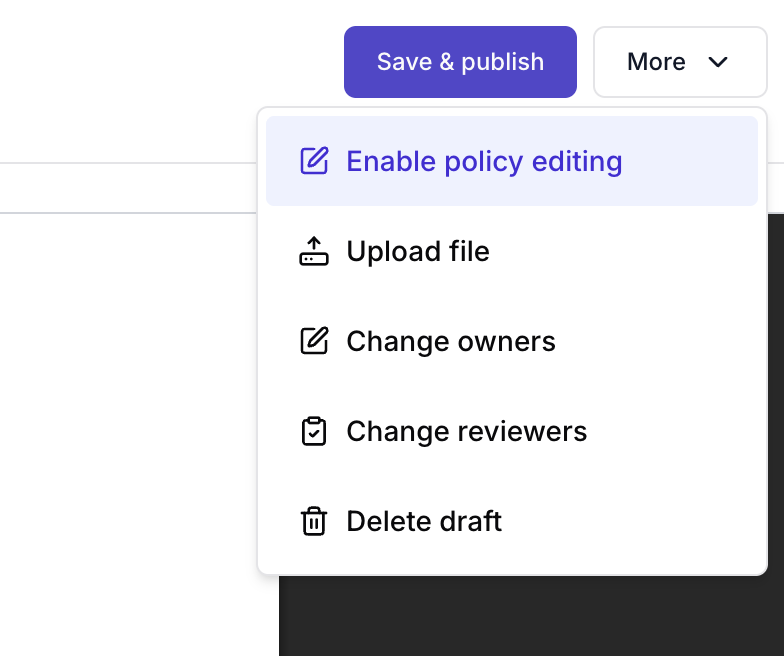
If a policy was added as an uploaded file, the Draft card on the Versions tab shows an Uploaded label. Select Edit & Publish to open the editor, which shows a preview of the uploaded file.
From the editor header More menu you can:
Upload file: Replace the uploaded file with a newer version.
Save & publish: Publish the uploaded file as the latest version.
If you want to switch from an uploaded file to the structured section editor, use the More menu and choose Enable policy editing. Mycroft generates editable sections from your organization context. Once enabled, the sectioned editor becomes the primary source for the policy.