Cylance: “Driver Failed To Connect” MacOS
Last updated: May 26, 2026
If you open the Cylance PROTECT app and see Driver Failed To Connect, Device Not Protected, it often means the Cylance endpoint security extension wasn’t enabled during installation (macOS). This can show up as a red error dot on the Cylance icon in the macOS menu bar.
This step is required for Cylance to connect and protect the device. Without enabling this extension, Cylance may continue to show Driver Failed To Connect / Device Not Protected. You will be prompted to fulfill this step when Cylance is initially installed.

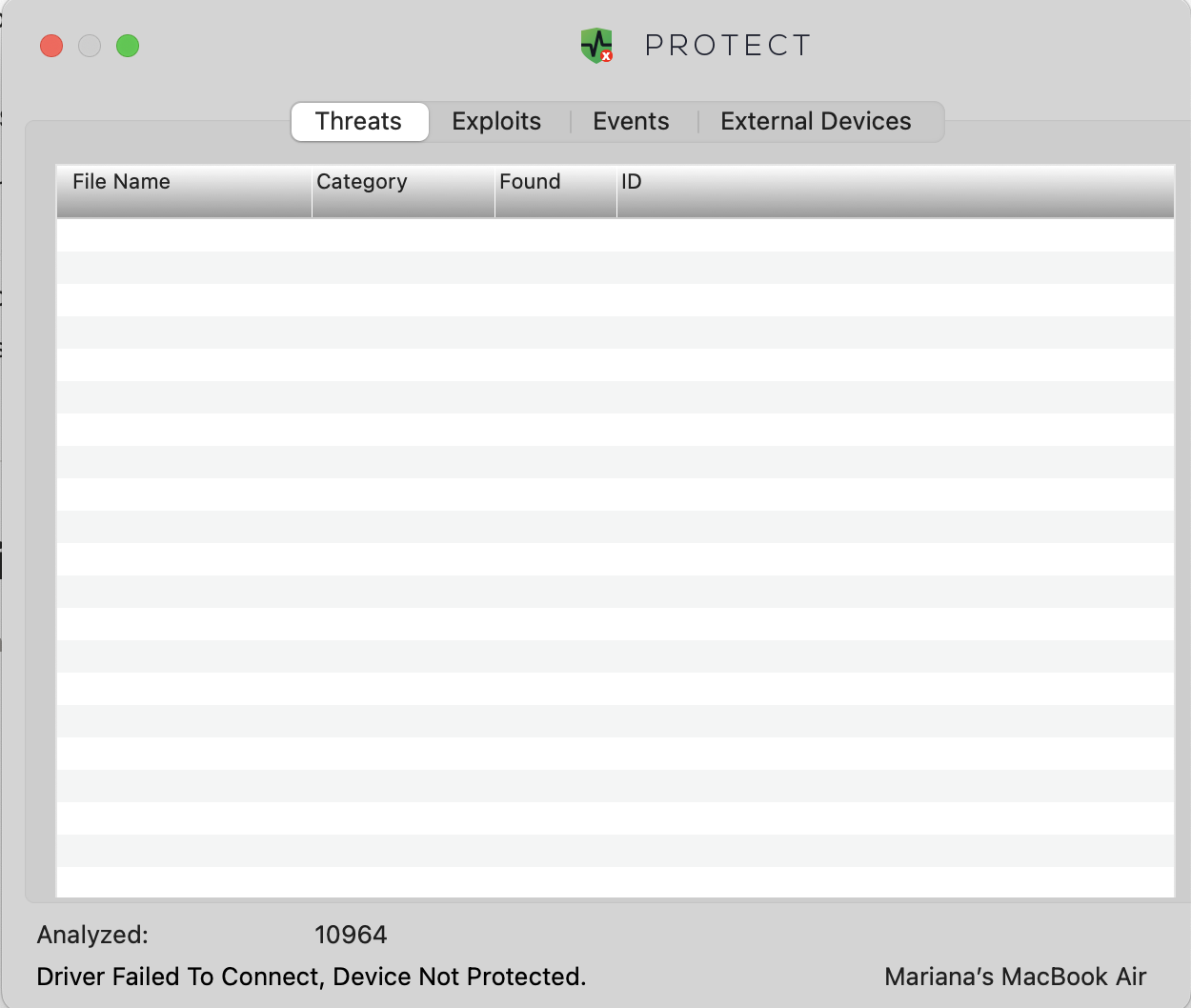
Fix: enable the Cylance endpoint security extension (macOS)
Open System Settings.
Go to General. (Not Privacy & Security.)
Click Login Items & Extensions.
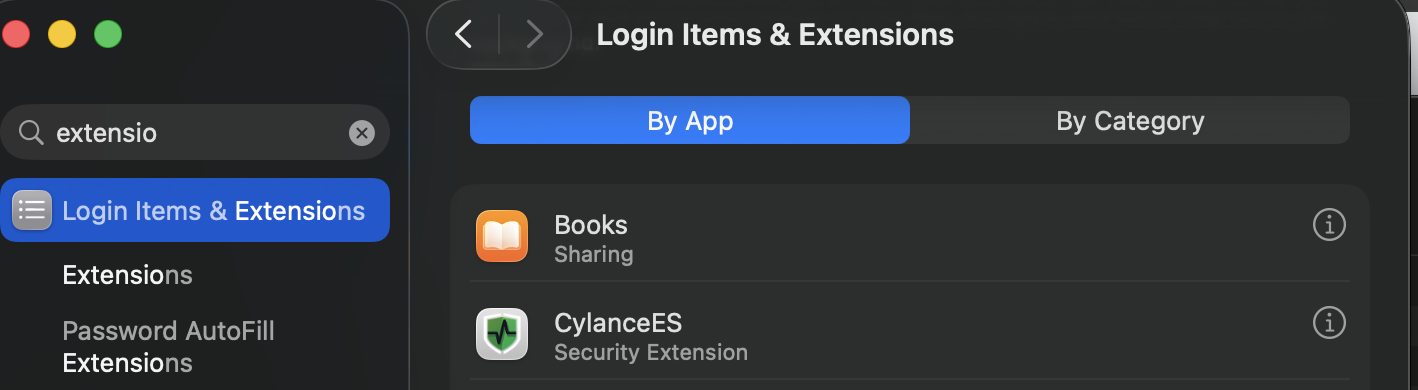
Scroll down to Extensions.
Find CylanceES and click the ℹ info icon.
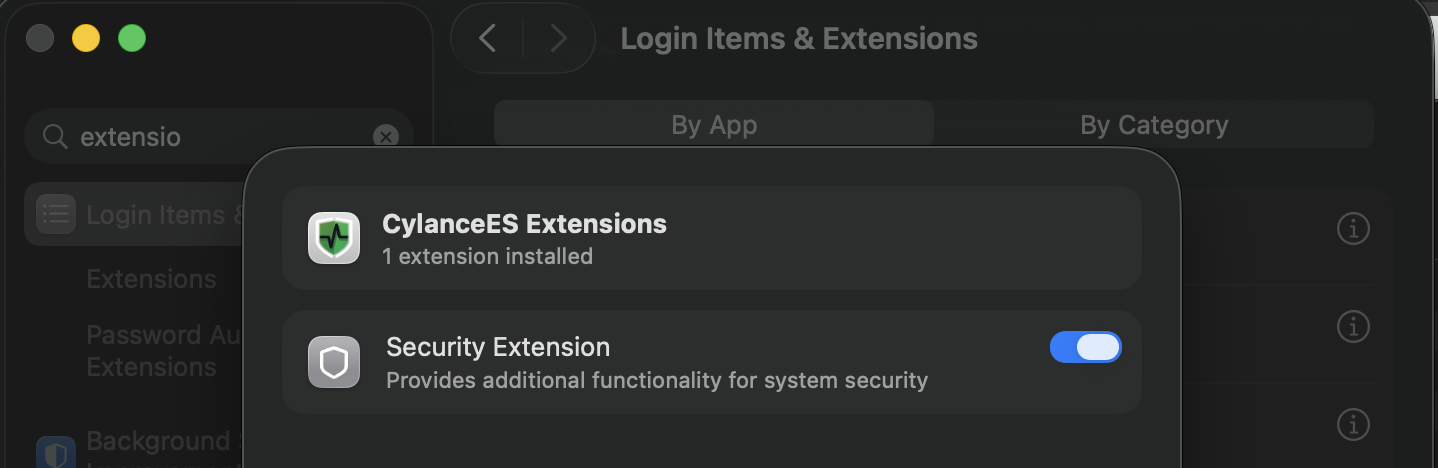
Turn on the Security Extension toggle for CylanceES.
If it’s still not protected
Try quitting and re-opening Cylance PROTECT (or rebooting the Mac).
Some installs may also require granting additional permissions (for example, Full Disk Access) depending on your organization’s setup.
If the error persists, contact Mycroft support and include a screenshot of the error state.