Evidence for Secure Mac Devices (no MDM Solution)
Last updated: May 12, 2026
Mycroft's Mobile Device Management (MDM) solution acts as your "silent auditor," automatically verifying that devices meet encryption, password, and update standards.
However, when employees use personal devices (BYOD) without MDM enrollment, the burden of proof shifts.
To maintain security compliance (such as SOC2 or HIPAA), employees must provide manual snapshots of system settings to verify that these "unmanaged" devices aren't creating vulnerabilities.
Missing evidence from an employee may result in a Request for Evidence/Samples, or potentially an exception on an audit report if not provided on time.
Please follow the steps below and provide the 3 mandatory screenshots, ensuring their name is visible in every single screenshot.
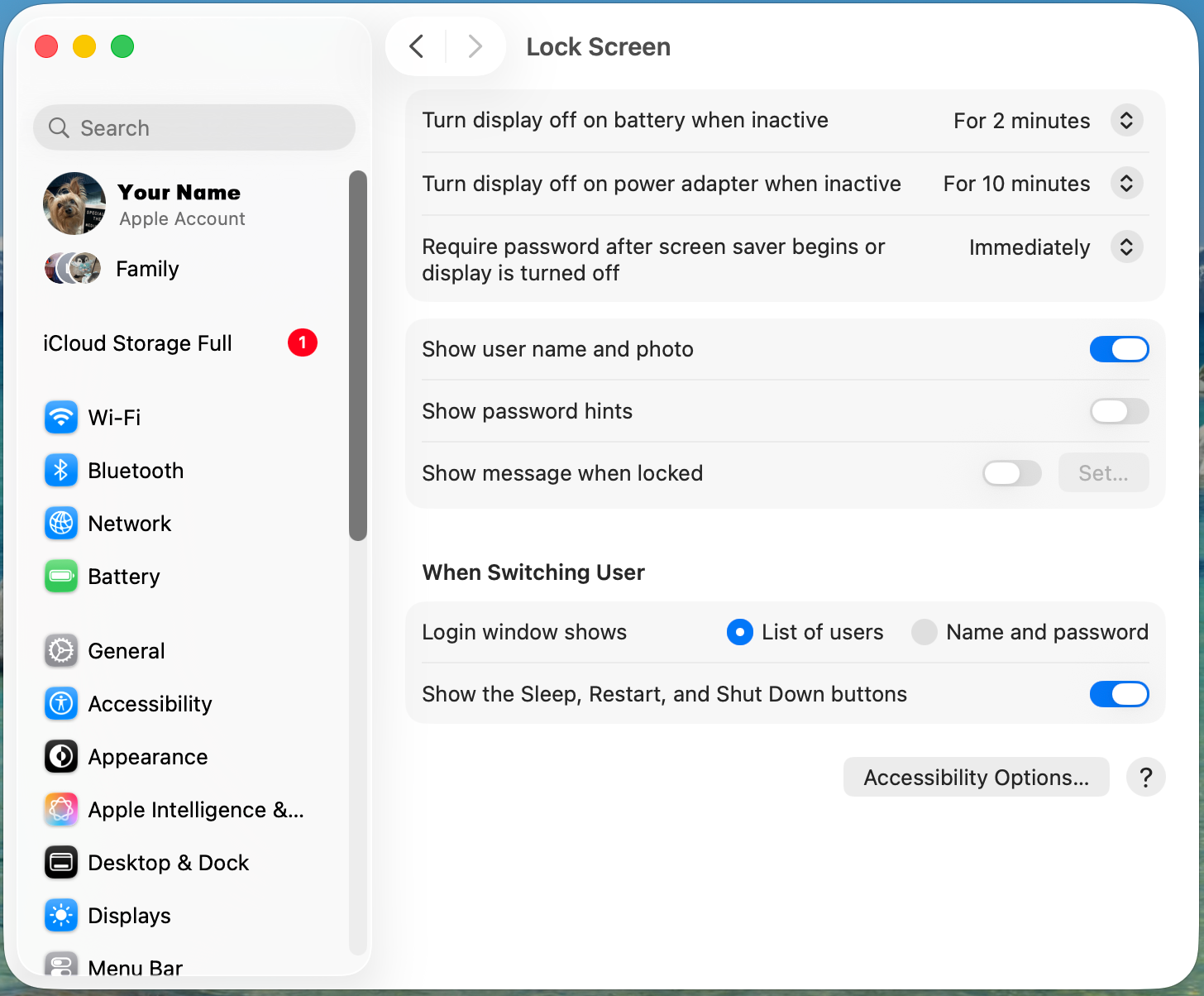
1. Mac OS - Evidence for Protected Device
Go to System Settings on your Mac.
Select Lock Screen from the Settings menu
Take a screenshot of your system settings, ensuring your name is visible.
2. Mac OS - Evidence for Hardware Encryption
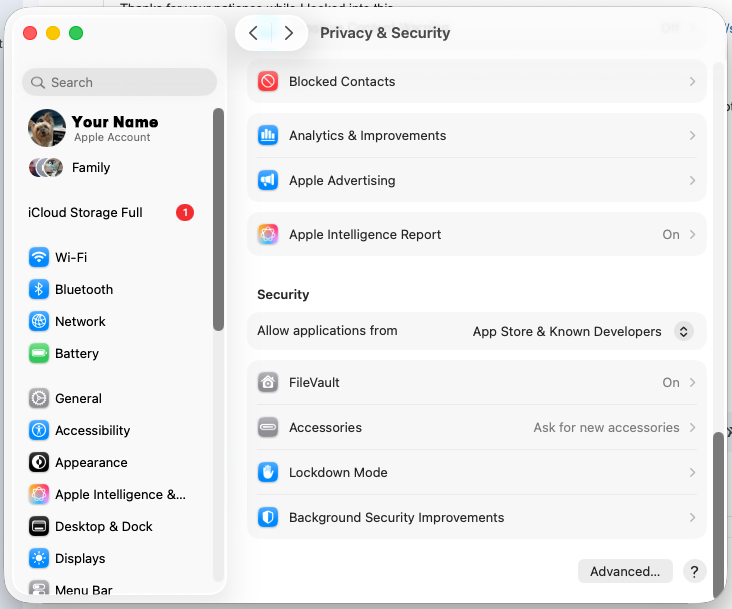
Go to System Settings on your Mac.
Select Privacy & Security from the Settings menu
FileVault should be turned On for your harddrive to be encrypted. Turn this on if it is off (This could also explain why Mycroft MDM had issues)
Take a screenshot of your system settings, ensuring your name is visible.
3. Mac OS - Evidence for Anti-virus XProtect
Go to System Settings on your Mac or click Command + Space
Search for System Information
Software > Installations
We're looking for XProtectPlistConfigData to be screenshotted and shared, ensuring the dates are visible
Why Manual Collection is Necessary
While we strongly recommend enrolling in our corporate MDM for automated reporting, we recognize that privacy concerns or device ownership often lead to personal hardware remaining unmanaged. In these cases, manual evidence collection is the only way to:
Validate Encryption: Ensure FileVault (macOS) is active.
Confirm Patching: Verify the OS version is up to date against known exploits.
Verify Access Control: Document that screen locks and complex passwords are enforced.
Visit our article for Windows Devices: Evidence for Secure Windows Devices (no MDM Solution)