Reviewing User Accounts in an Access Review
Last updated: June 5, 2025
Regularly reviewing user accounts ensures that only the right individuals retain access to sensitive systems and data. It helps identify inactive, out-of-scope, or high-risk accounts that may pose security threats. This practice supports least privilege principles, reduces exposure, and enforces compliance with frameworks like SOC 2 and ISO 27001.
Mycroft streamlines this process by offering structured reviews, automated actions, and clear audit documentation—all essential for secure and compliant access management.
Accessing a Specific Vendor Review
Follow these steps to navigate to a vendor review in the access review system:
In the navigation menu, click on the
Access Reviewsoption.Search for and select the associated Access Review.
Search for and select the Associated Vendor.
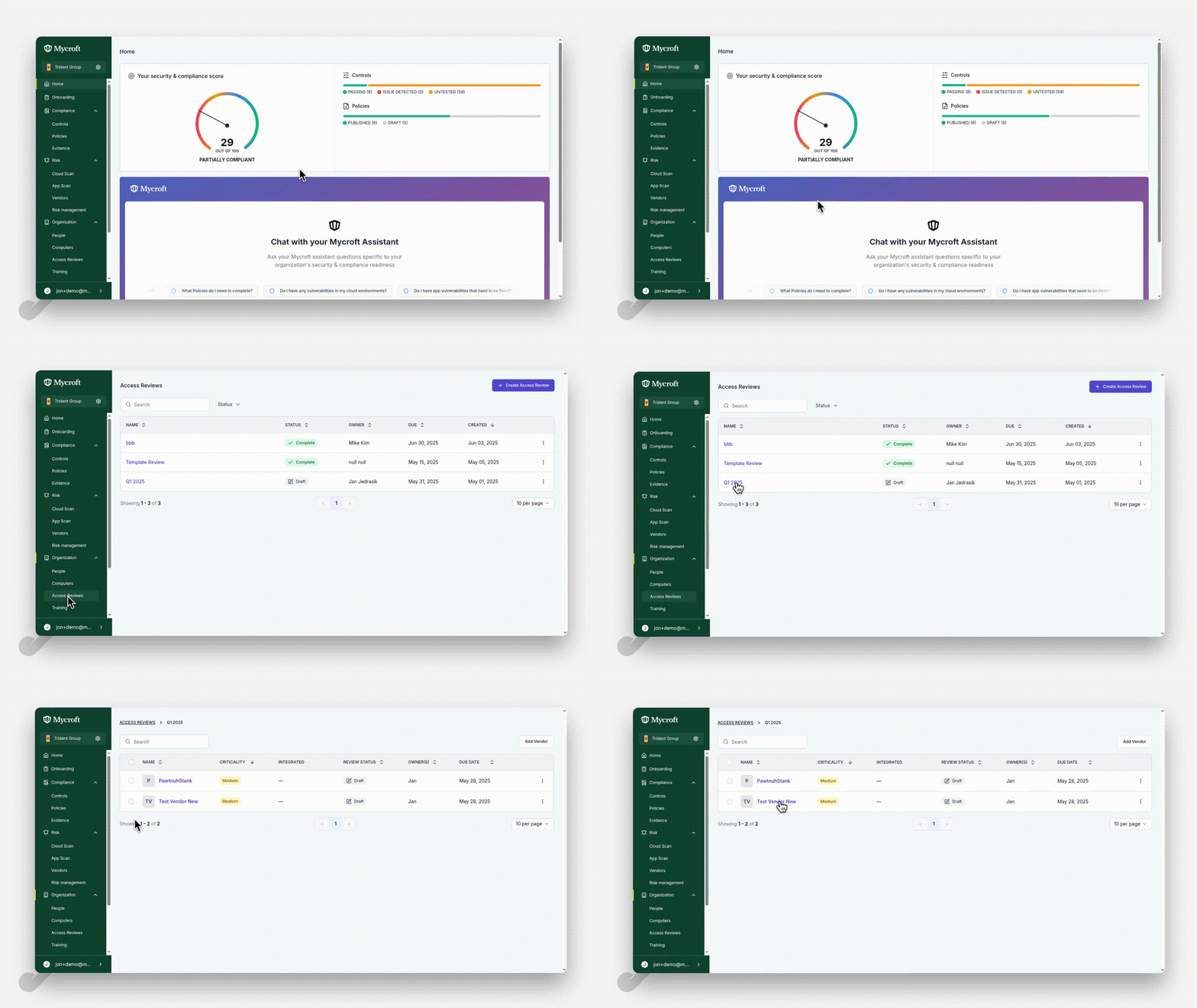
7. Click "Review users".

8. Review the list of inactive or terminated users.

Approving an Inactive or Terminated Account (Optional)
Inactive accounts may belong to former employees or vendors whose actions need to remain traceable. Approving them acknowledges that their presence is intentional and part of historical security records.
To approve an account, click the green check mark under the "Access" Column.

(Optional) Provide a reason for the approval of this inactive account.

To publish the comment, click the "Comment" button below the text field.

Removing an Inactive or Terminated Account (Optional)
Inactive accounts, especially those with elevated privileges, can be targeted by malicious actors. Removing them eliminates unnecessary entry points into your environment.
To remove an account, click the Red X under the "Access" Column.

(Optional) Provide a reason for the removal of this inactive account.

To publish the comment, click the "Comment" button below the text field.

Marking an Account as Out of Scope (Optional)
Marking an account as "Out of Scope" ensures it’s explicitly excluded from security assessments and audits, helping teams focus only on relevant assets.
To mark an account as out of scope, click the visibility icon under the "Access" Column.

(Optional) Provide a reason for giving the "Out of Scope" status to this inactive account.

To publish the comment, click the "Comment" button below the text field.
