Creating an Access Review
Last updated: May 31, 2025
Creating an access review in Mycroft enforces periodic verification of user permissions, ensuring least‑privilege access and reducing security risk. Centralizing reviews within Mycroft automates workflows, provides audit‑ready documentation, and streamlines compliance with regulations.
This helps companies quickly identify outdated or excessive privileges, maintain rigorous controls, and demonstrate governance to auditors.
Initiating a New Access Review
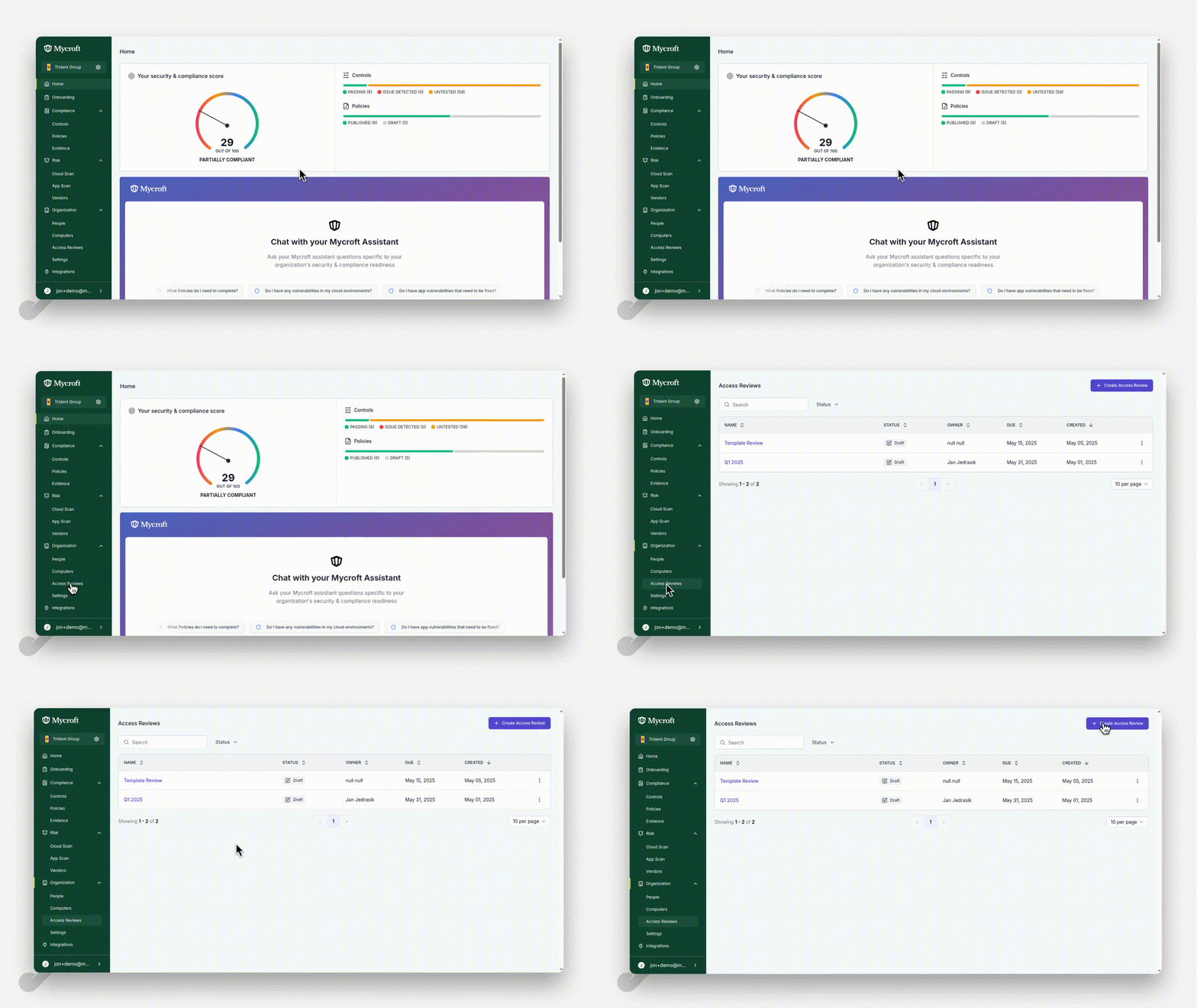
To begin creating a new Access Review:
Navigate to the main dashboard
Click on
Access Reviewsin the navigation menuClick the
Create Access Reviewbutton to start the creation process
Setting Up Basic Review Details
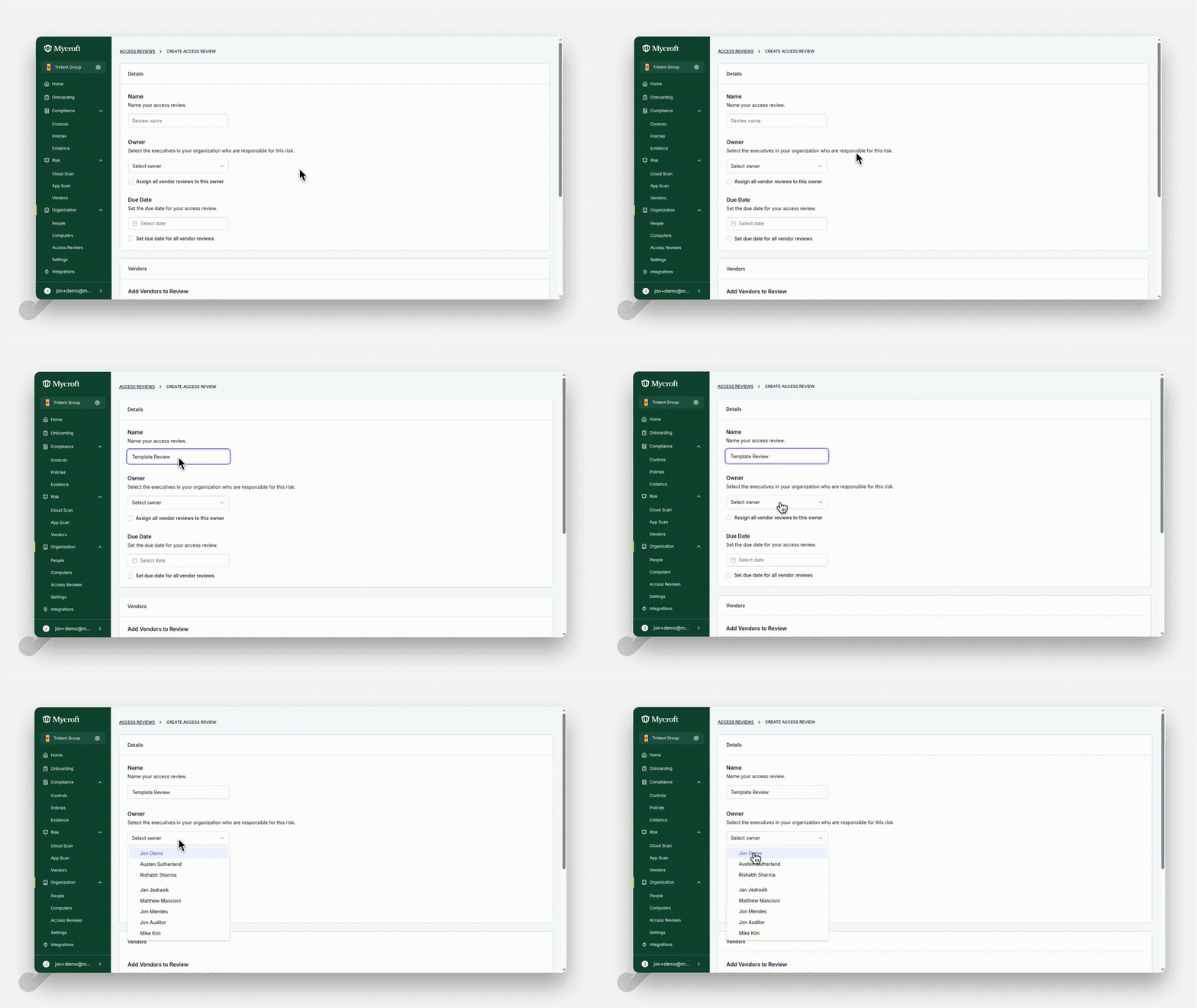
Naming the Review and Assigning an Owner
Enter a descriptive name for your review in the
Namefield (e.g., "Template Review")Click on the
Select ownerdropdown fieldFrom the list of available owners, select the appropriate person (e.g., "Jon Demo")
Setting the Review Date
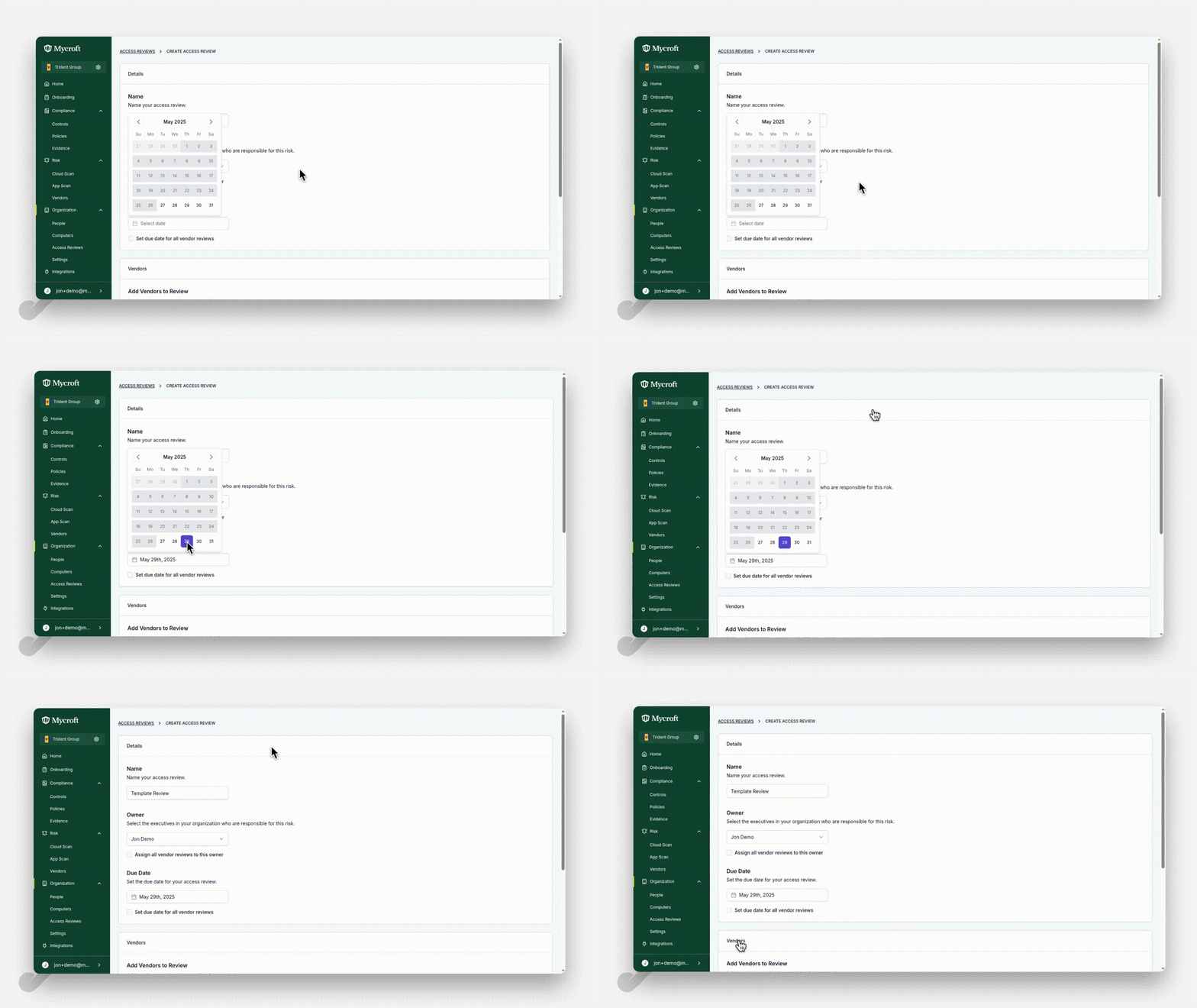
Click on the date field to open the calendar
Select your target date (in this example, May 29th)
Navigate to the
Vendorssection to continue setting up your review
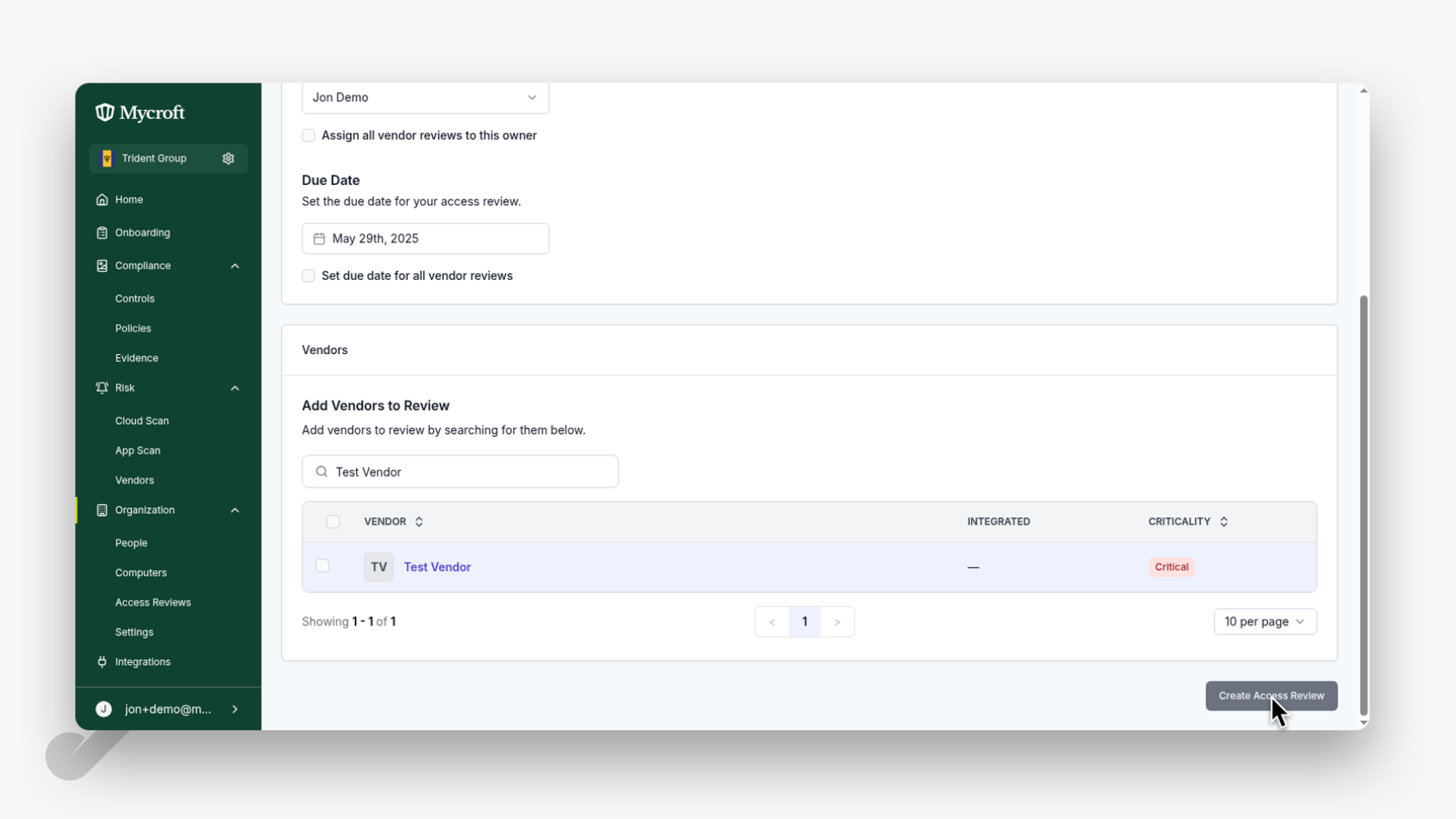
Adding Vendors to the Review
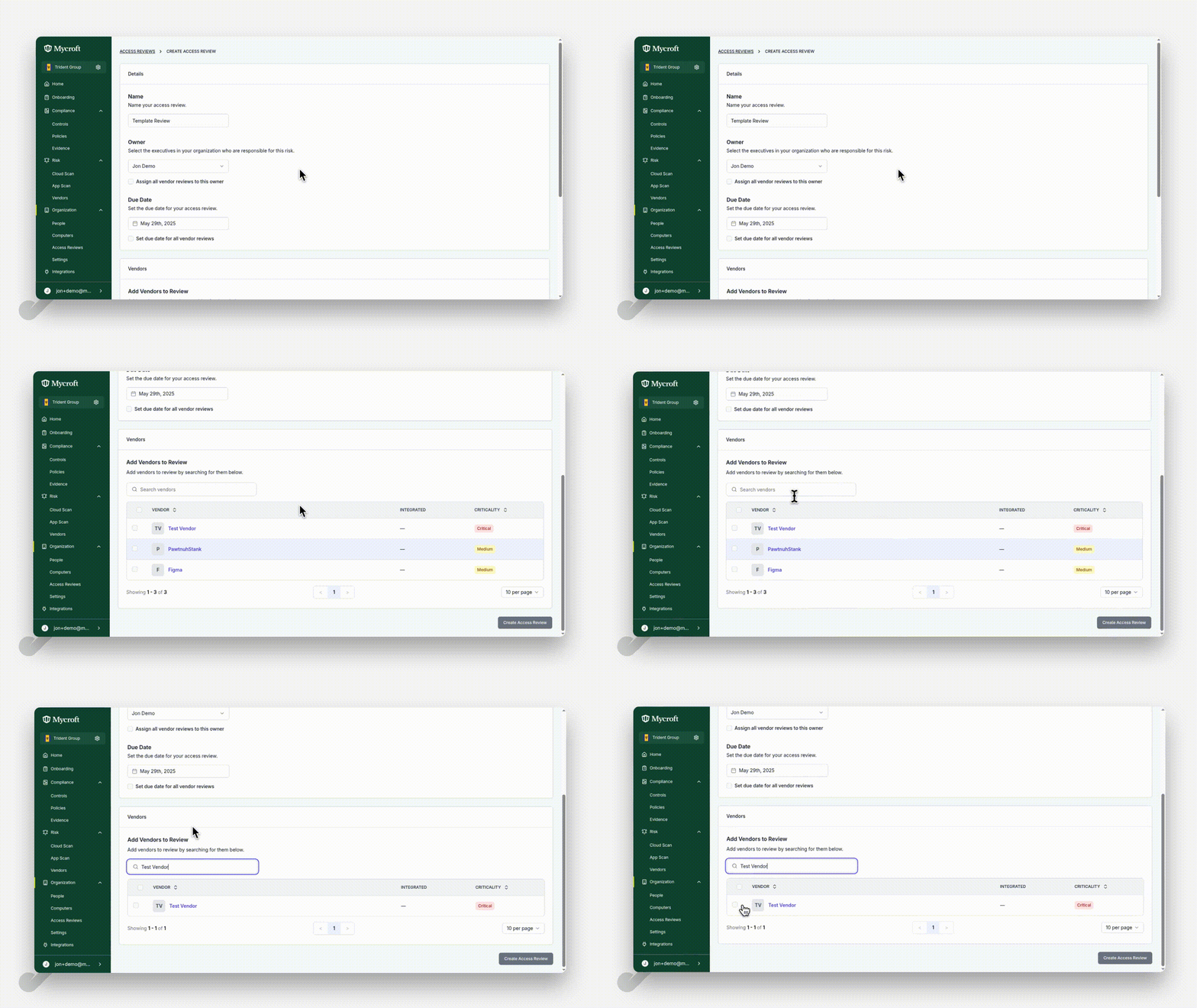
Scroll down to reveal the vendor search functionality
Enter the vendor name in the search field (e.g., "Test Vendor")
Select the appropriate vendor by clicking the checkbox next to their name
Note: You can add multiple vendors by repeating the search and selection process.
Finalizing the Access Review creation
Once you've completed all required fields and selected the appropriate vendors:
Click the
Create Access Reviewbutton to finalize the process and create your review
Your access review will now be created and ready for use.