Setting Up the Mycroft Assistant in Slack
Last updated: June 23, 2026
Connecting the Mycroft Assistant to Slack links your Mycroft account to your Slack account, so Mycroft can reach you directly with notifications and let you take action without leaving Slack.
Note: You must have connected Slack in your Mycroft dashboard at app.mycroft.io/integrations. If Slack was connected before Feb 20th, 2026, you may need to disconnect and reconnect the integration. No data is lost by reconnecting.
Set Up the Mycroft Assistant in Slack
In any Slack channel, run the Mycroft
/connectcommand. If you don't see this command, the Slack integration needs to be reconnected (see note above).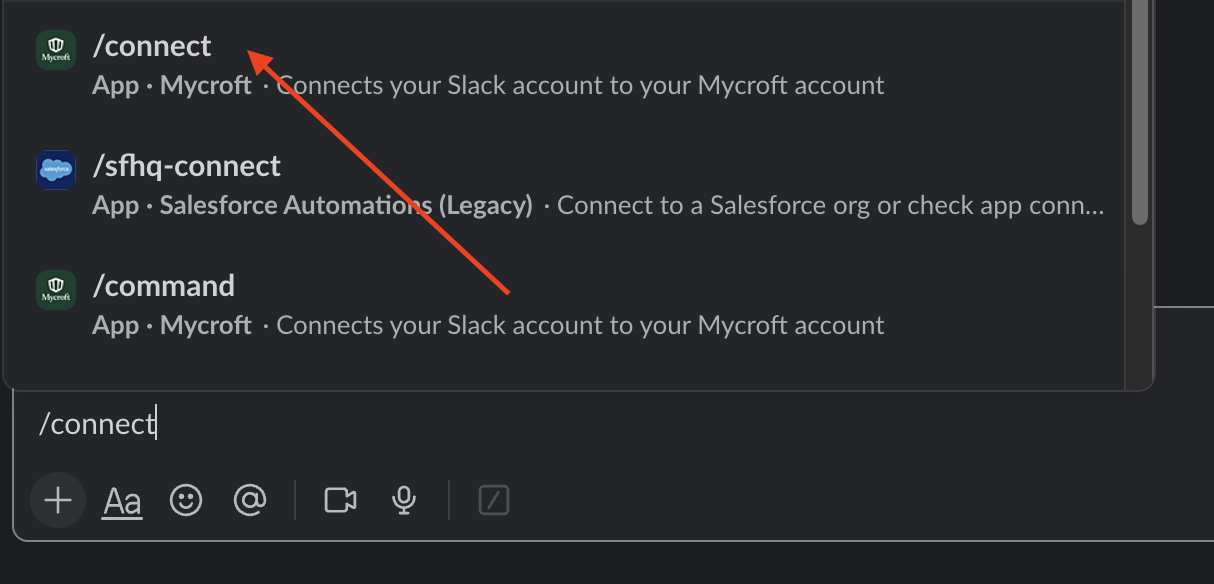
Follow the prompt to connect your Mycroft account to your Slack account. If you're not already signed into Mycroft, you'll be prompted to sign in first. The Mycroft Slack application does not take any actions on behalf of your own Slack account.

Once the connection is successful, Mycroft will message you to confirm you're set up. From here, the Mycroft Assistant can send you direct messages in Slack for things like trust center access requests and third party risk assessments.