Approving access requests via Slack (Slackbot)
Last updated: June 1, 2026
If you connect Mycroft to Slack, Mycroft can send access request notifications to your Slack direct messages. You can approve, temporarily approve, or deny requests directly from those notifications.
You must have connected Slack in your Mycroft dashboard at app.mycroft.io/integrations. If Slack was connected before Feb 20th, 2026, you may need to disconnect and reconnect the integration. No data is lost by reconnecting.
Set up the Slackbot
In any Slack channel, run the Mycroft
/connectcommand.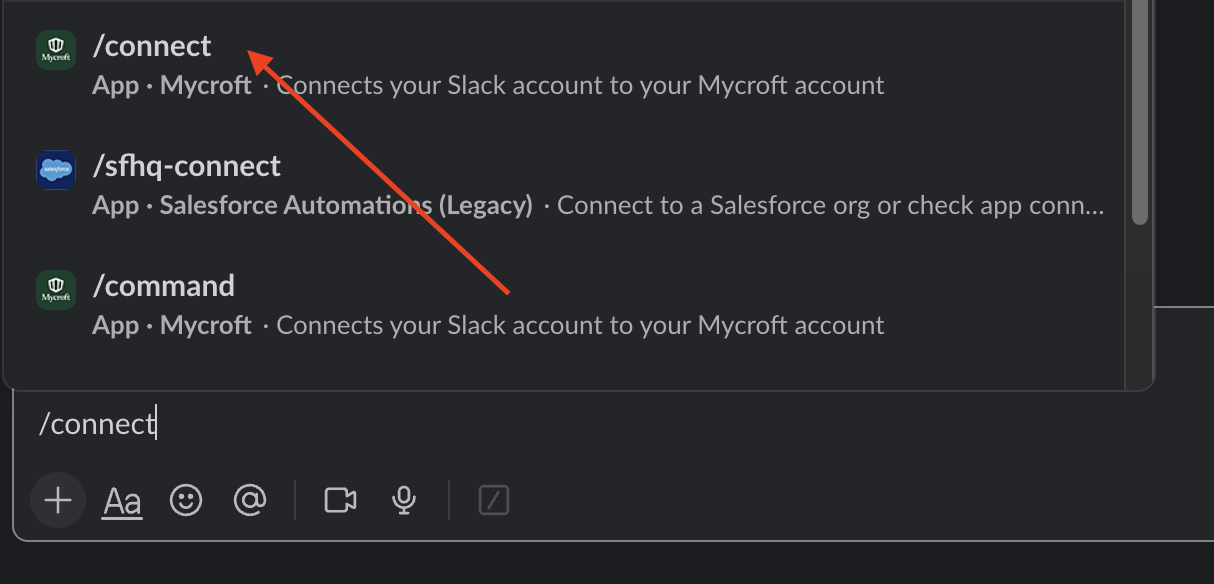
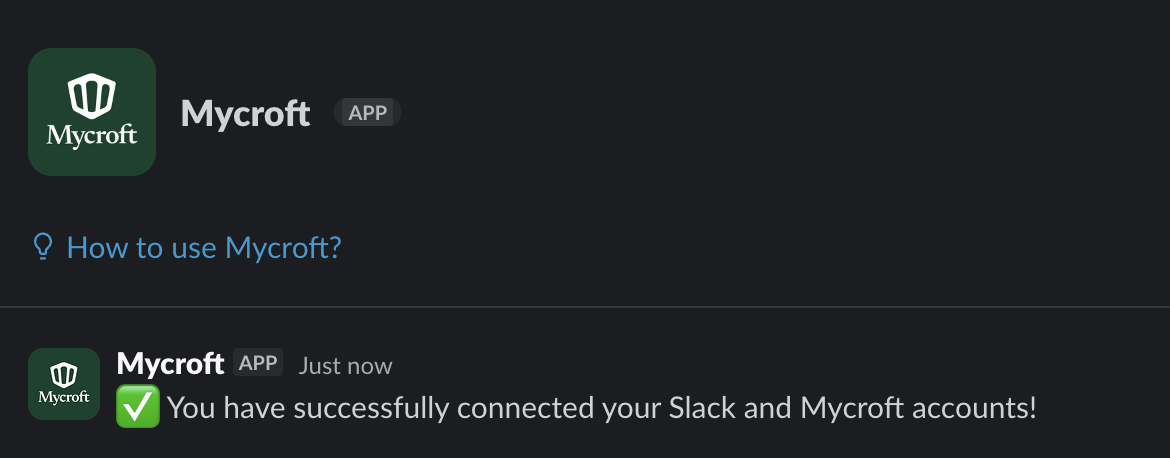
Follow the prompt to connect your Mycroft account to your Slack account.

In the Mycroft dashboard, go to Trust Center Settings: app.mycroft.io/org-settings/trust-center.
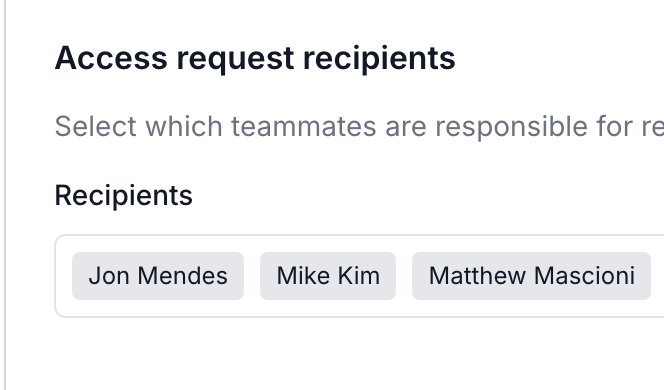
Under Access request recipients, ensure you are listed as a recipient.
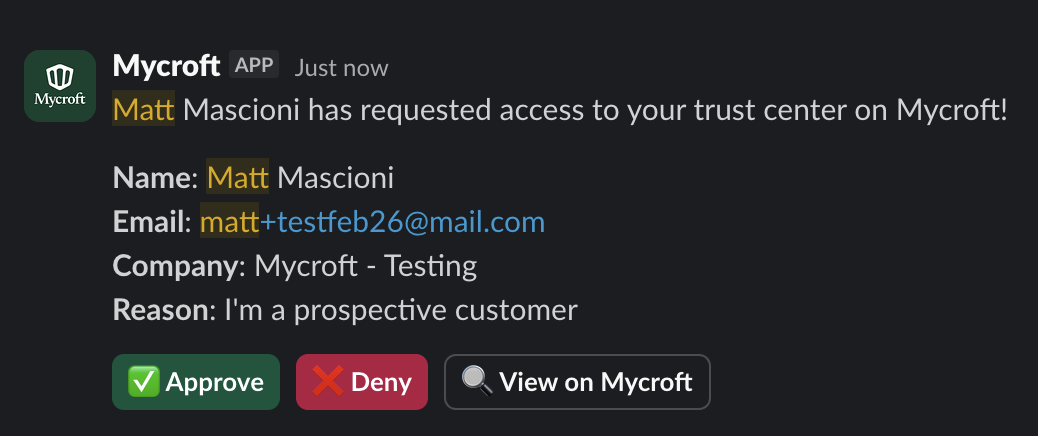
What happens next
You will receive notifications by email and Slack DMs whenever someone requests access to your Trust Center.
From the Slack notification, you can approve, temporarily approve, or deny access.