Rescanning an App scan
Last updated: June 5, 2025
Rescanning an App Scan in Mycroft ensures vulnerability data remains accurate and reflects the current state of your application environment. It captures recent changes in configurations, code, permissions, or integrations that could introduce new security risks.
Performing regular rescans helps teams identify emerging vulnerabilities, maintain audit-ready records, and ensure ongoing alignment with security and compliance requirements across the software lifecycle.
Accessing the App Scan Feature
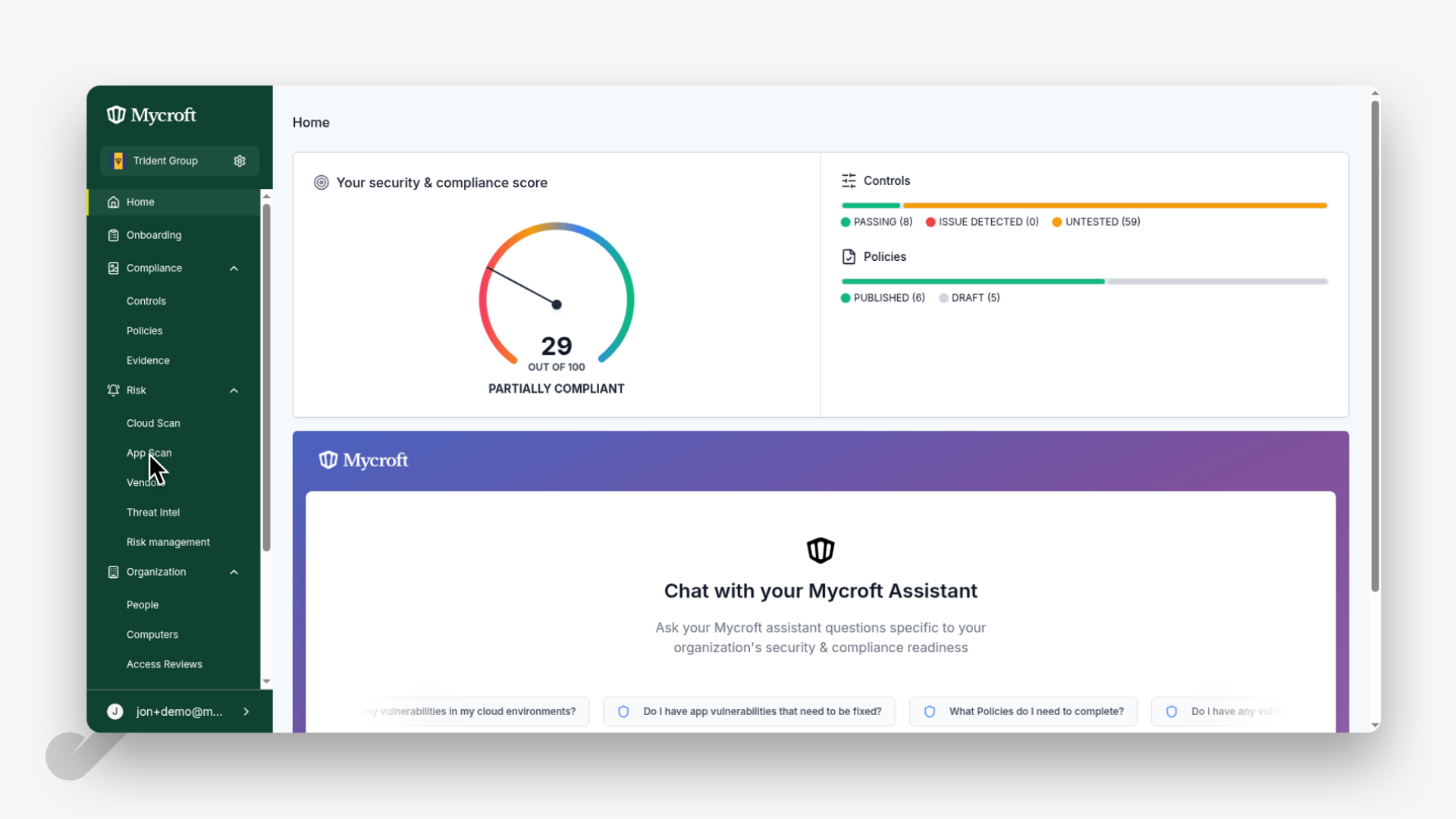
Navigate to the left-hand menu and select the
App Scanoption to access the application scanning section.
Selecting and Rescanning an Application
Once you've located your application:
Click on the application name (e.g.,
Example Application) to select itClick the
Rescanbutton to initiate the scanning process
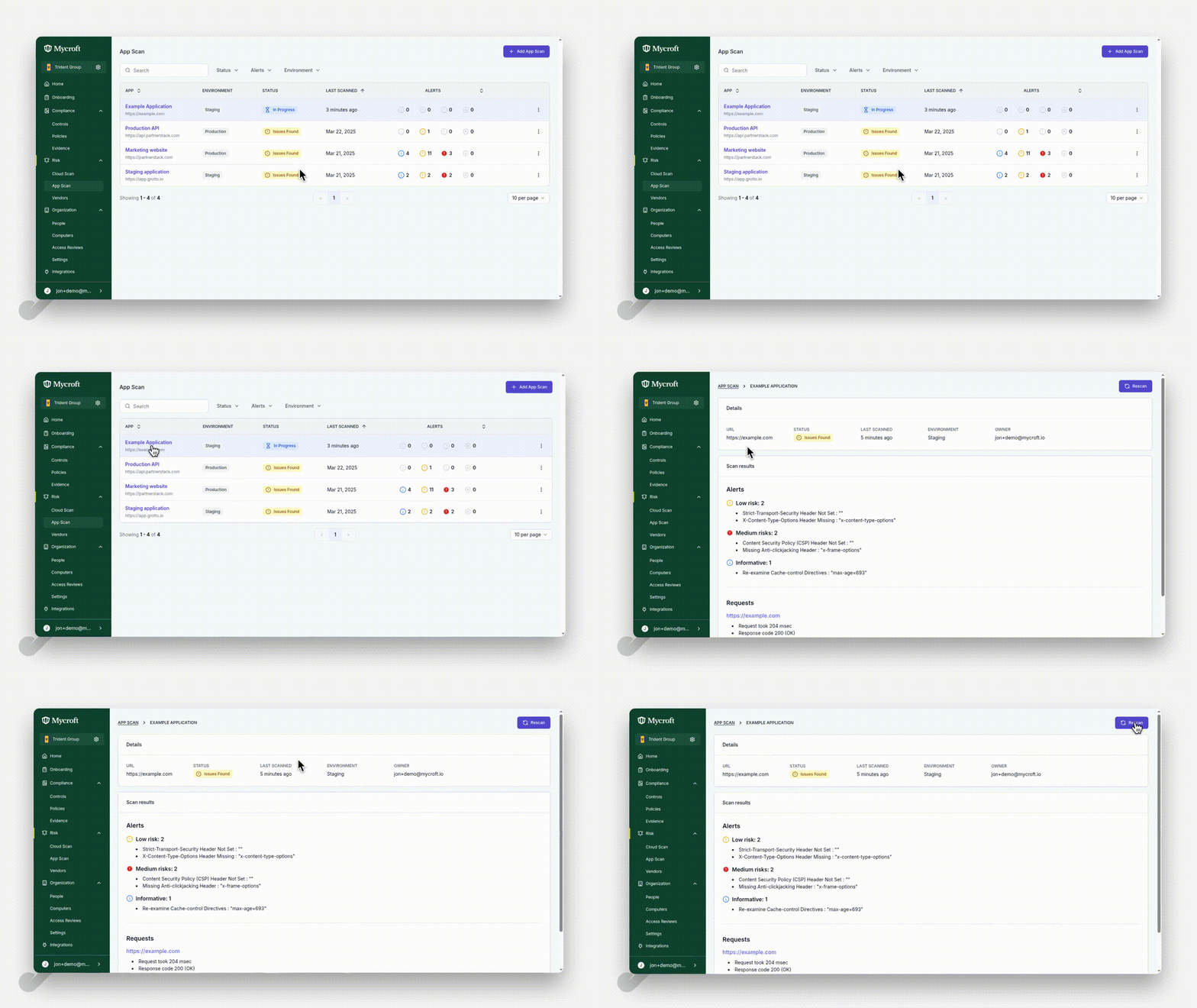
The system will begin rescanning the selected application. This process helps identify any changes or issues with the application that may have developed since the last scan.