Adding an Application to Scan for Vulnerabilities
Last updated: May 31, 2025
Scanning an application in Mycroft helps identify security vulnerabilities and compliance issues within your software.
Companies use this feature to proactively detect risks, ensure secure development practices, and maintain compliance—supporting safer, more resilient applications across their environment.
Starting a New App Scan
To create a new application scan:
Navigate to the main dashboard
Select
App Scanfrom the navigation menuClick the
Add App Scanbutton to initiate the creation process
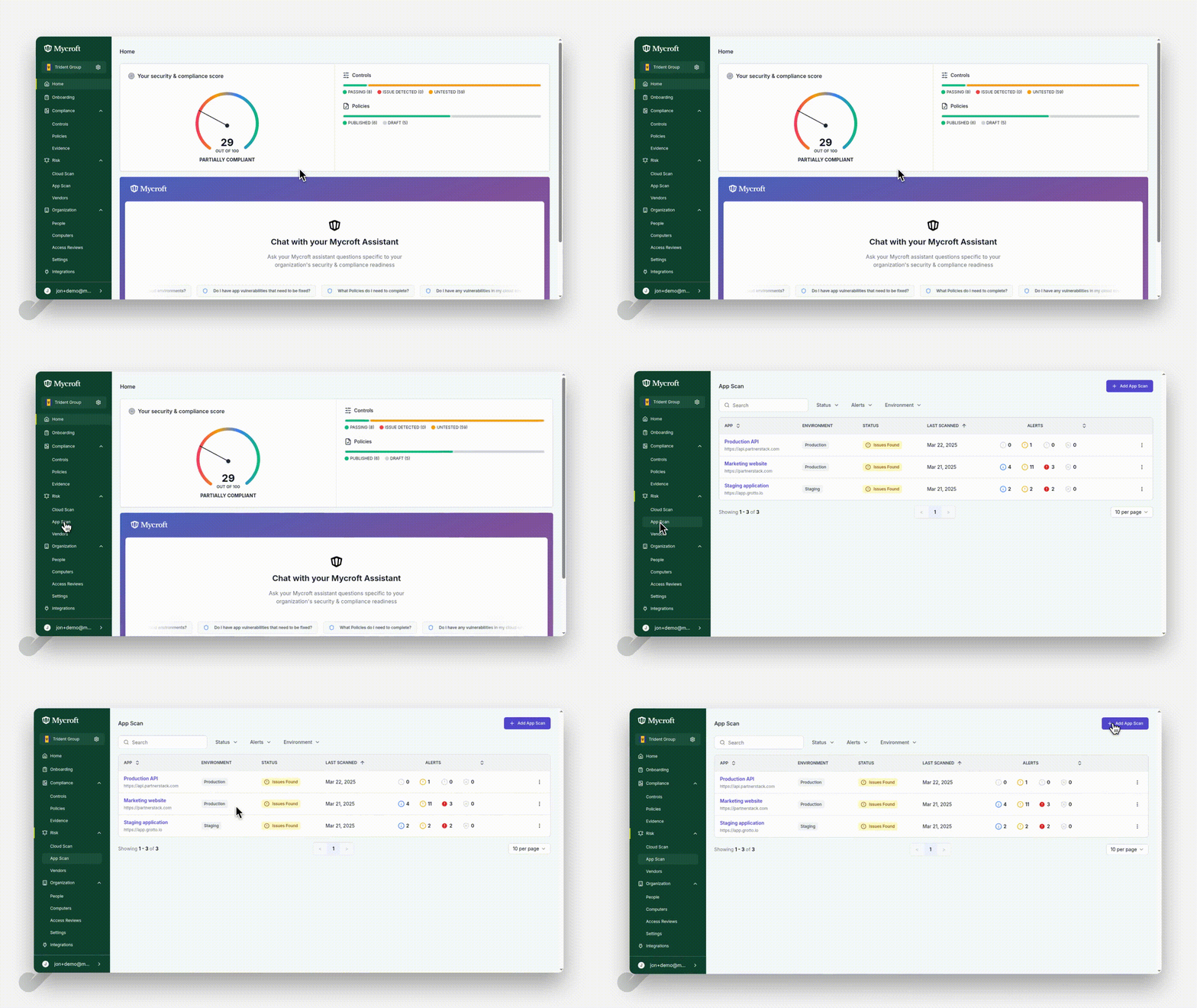
This will open the App Scan creation form where you can enter the details of the application you want to scan.
Entering Application Details
Fill in the basic information about the application you want to scan:
Enter the application name in the
NamefieldInput the application URL in the
URLfieldChoose the appropriate environment for your application scan from the
Environmentdropdown input and options. This helps keep your app scans organized and contextual to their respective environments.
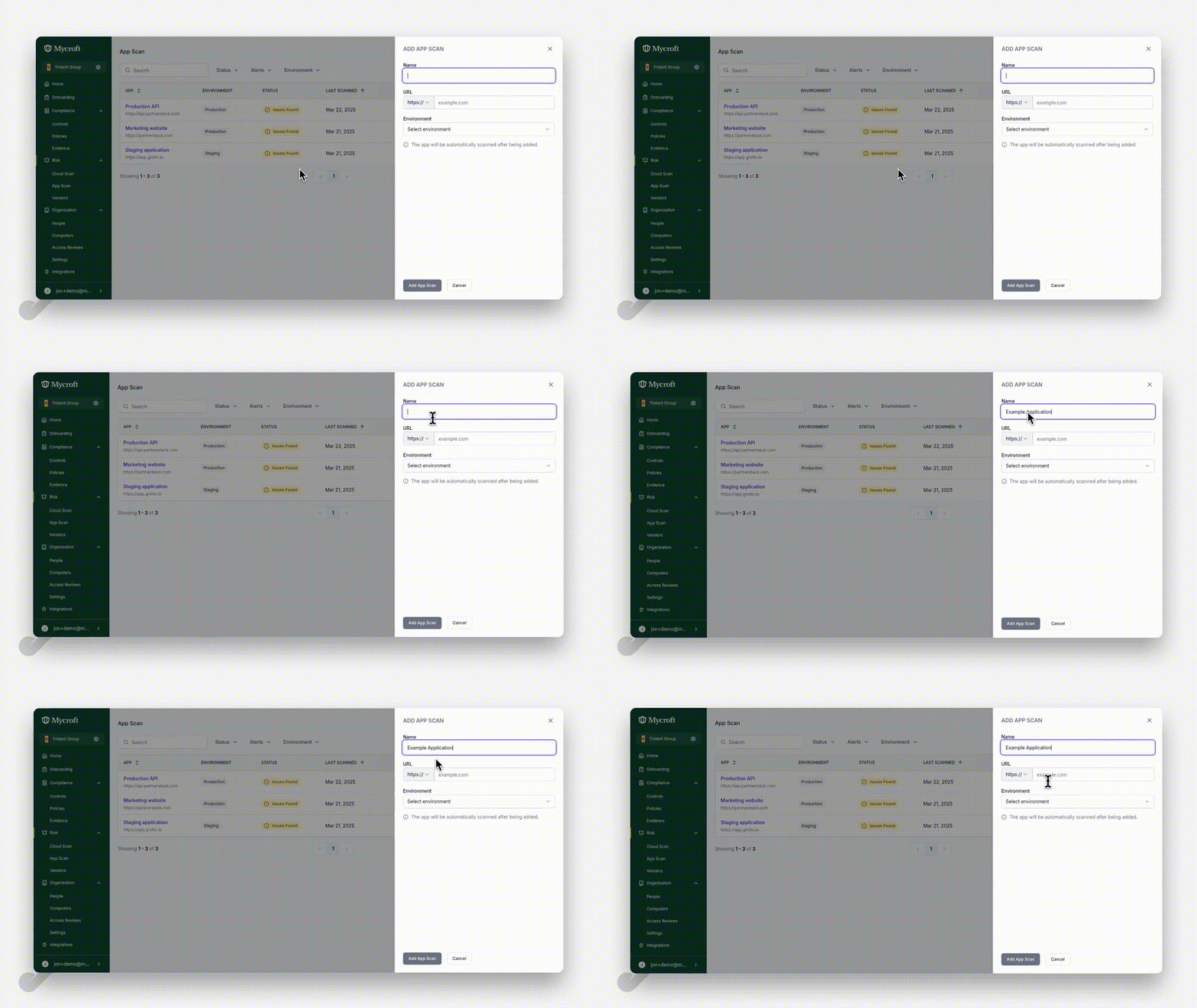
Note: Ensure the correct protocol is selected for your provided URL.
Submitting the App Scan
After entering all required information:
Review the details you've entered to ensure accuracy
Click the
Add App Scanbutton at the bottom of the form to create and initiate the scan
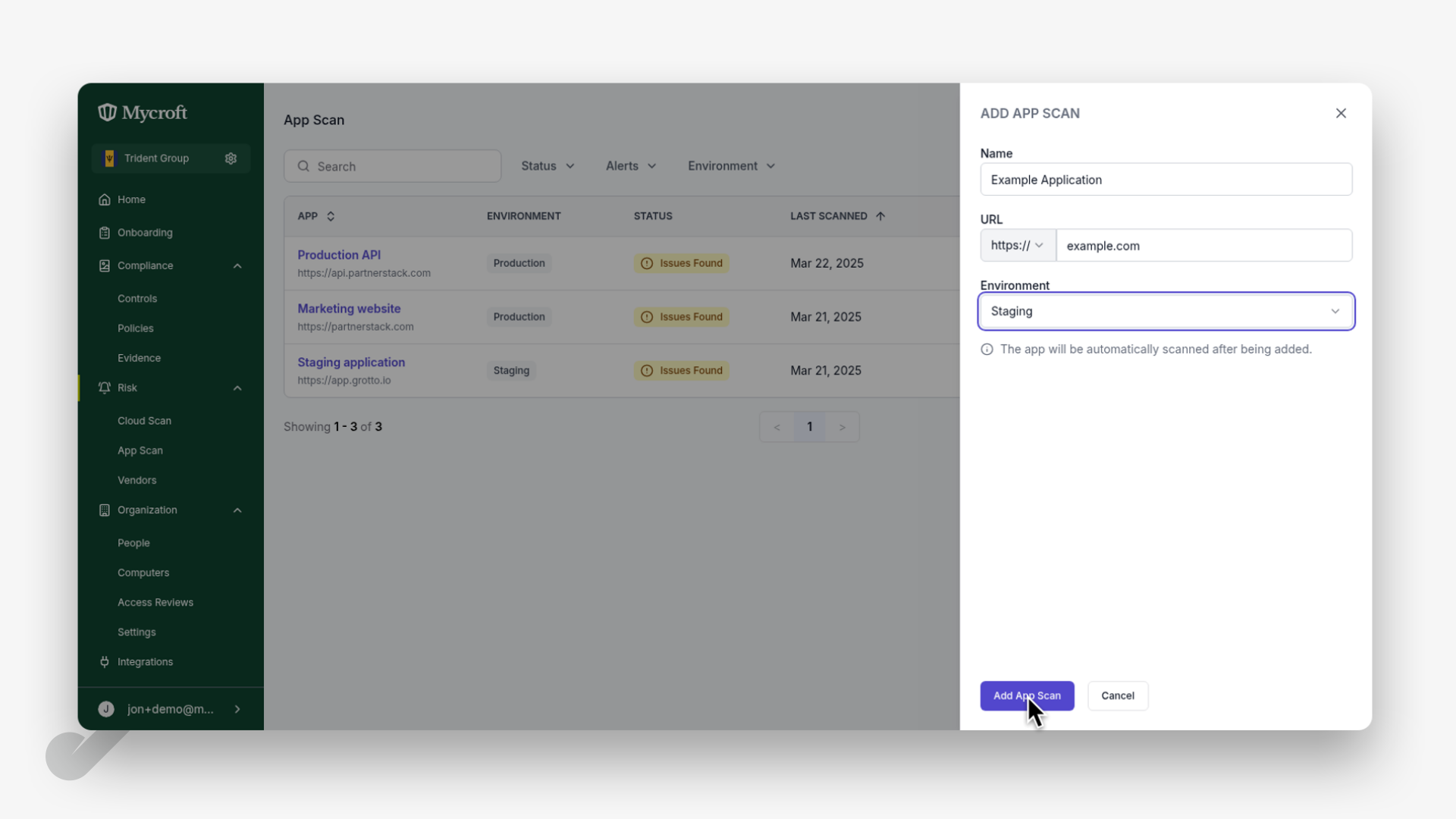
Once submitted, the system will process your request and begin scanning the application according to the parameters you've specified.