Downloading a Cloud Scan Report
Last updated: June 22, 2026
Downloading a Cloud Scan report gives you a point-in-time record of your cloud security findings that you can share with others, store for your records or use to track remediation progress over time.
Steps to Download a Cloud Scan Report
1. Log into your Mycroft account.
2. Go to the Cloud Scan tab under Risk.
3. Select the Scan Jobs tab at the top of the page.
4. Select a scan job from the table.
5. Click Download Report in the top right corner of the screen.
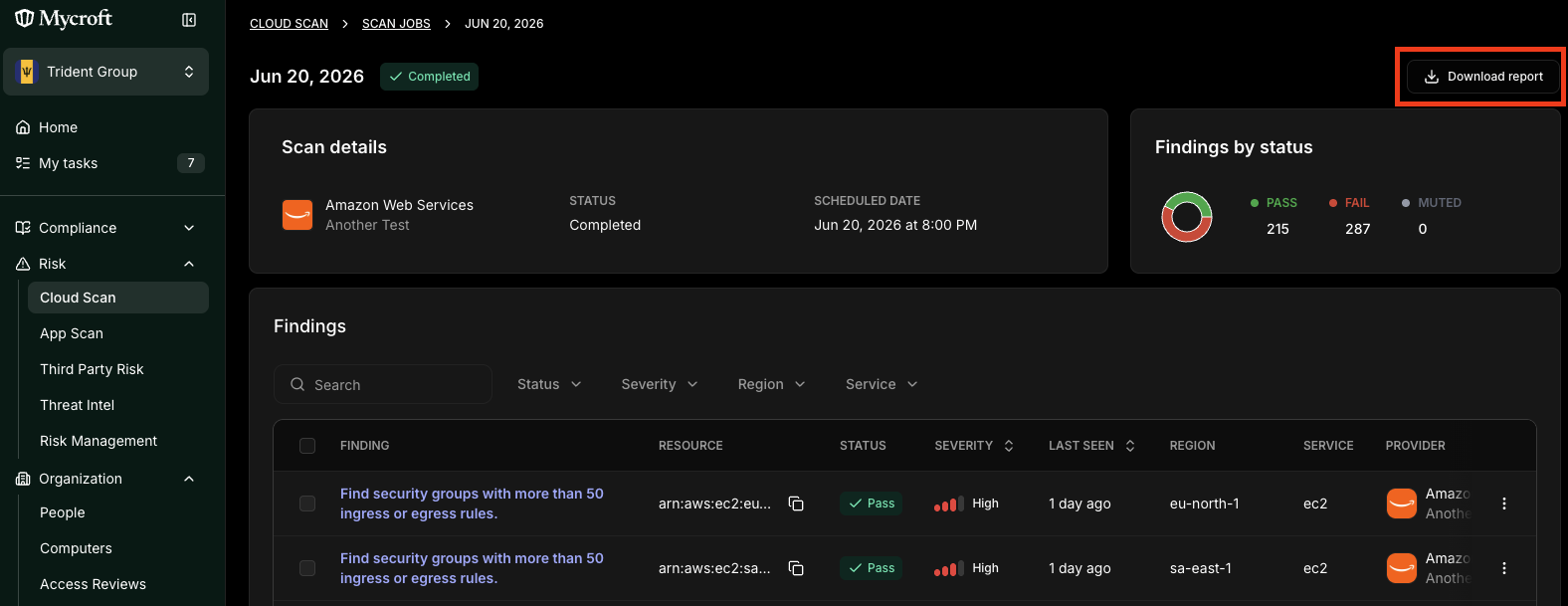
The report downloads to your device as a CSV with the full findings from that scan job.