Setting up Automatic Cloud Scan
Last updated: October 22, 2025
We recommend setting up Automatic Cloud Scan so Mycroft can continuously monitor your cloud infrastructure for vulnerabilities and send notifications. This enables organizations to respond to identified risk in accordance with their vulnerability management policy.
Steps to Set up Automatic Cloud Scan
Navigate to the left sidebar menu and click on
Cloud Scan.Select the
Auto-Scansetting at the top right corner (next to theRun Scanbutton)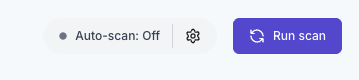
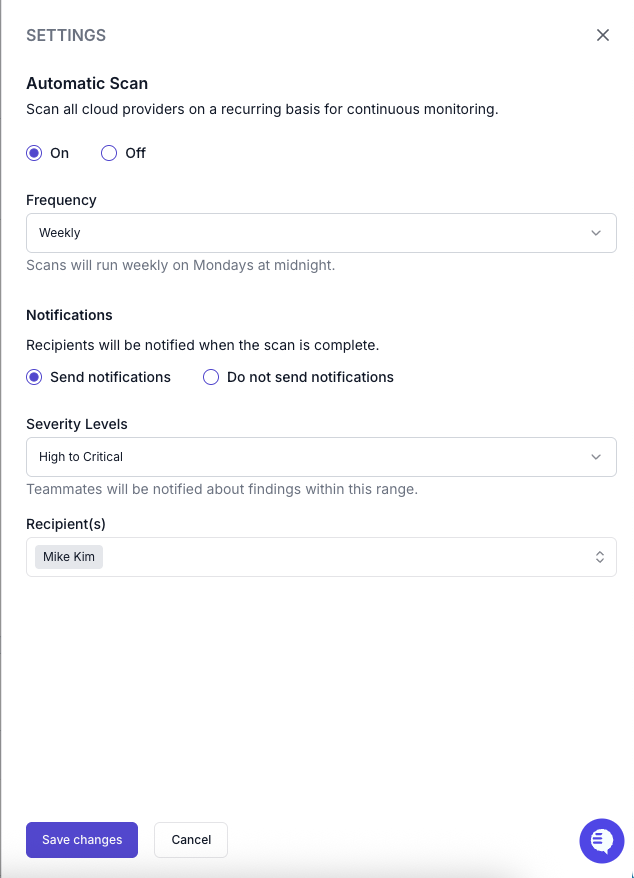
Select the
Onradio buttonSelect the desired
Frequencyfrom the drop down menuSelect if you would like recipients to be notified when a scan is complete with
Send notificationsorDo not send notificationsSelect the desired
Severity Levelsfrom the drop down menu if you want notifications (recommended best practice)Select the
Recipient(s)from the drop down menuSelect the
Save Changesbutton
Recommended Frequency of Automatic Cloud Scan
To ensure issues are detected and resolved within a sufficient window - we'd recommend a minimum of monthly scans.
Data Breach Notifications
Mycroft can assist with breach detection through our scan functionality. However, please note the following limitations:
We recommend a minimum of 48 hours for breach notification timelines
Tracking which specific customers are affected by a breach is not currently handled automatically by Mycroft
You will need to manually manage the process of notifying affected customers and tracking notification timing.