Syncing People via the HR System
Last updated: May 30, 2025
Syncing employee databases in Mycroft ensures user information stays accurate and up to date across systems. It simplifies user management, supports automated role assignments, and reduces manual entry errors.
Performing this sync keeps access controls current, improves security, and streamlines collaboration—helping companies maintain compliance and operational efficiency as teams grow or change.
Accessing the People Section
To begin the employee synchronization process, you need to access the People section:
Navigate to the main dashboard
Locate the navigation menu on the left side of the screen
Click on the
Peopleoption in the navigation menu
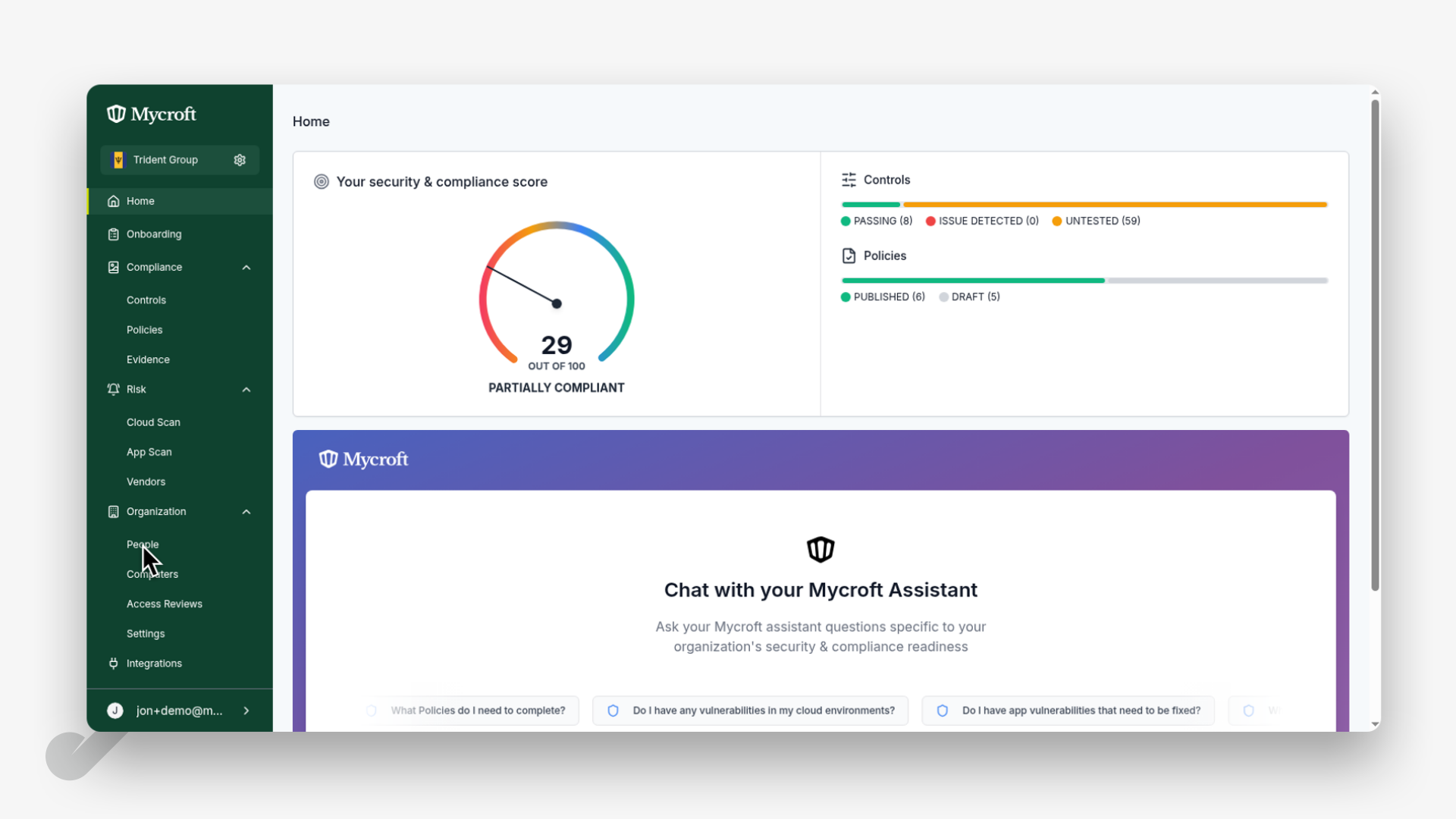
This will take you to the People management section where you can view and manage employee data.
Initiating the Synchronization Process
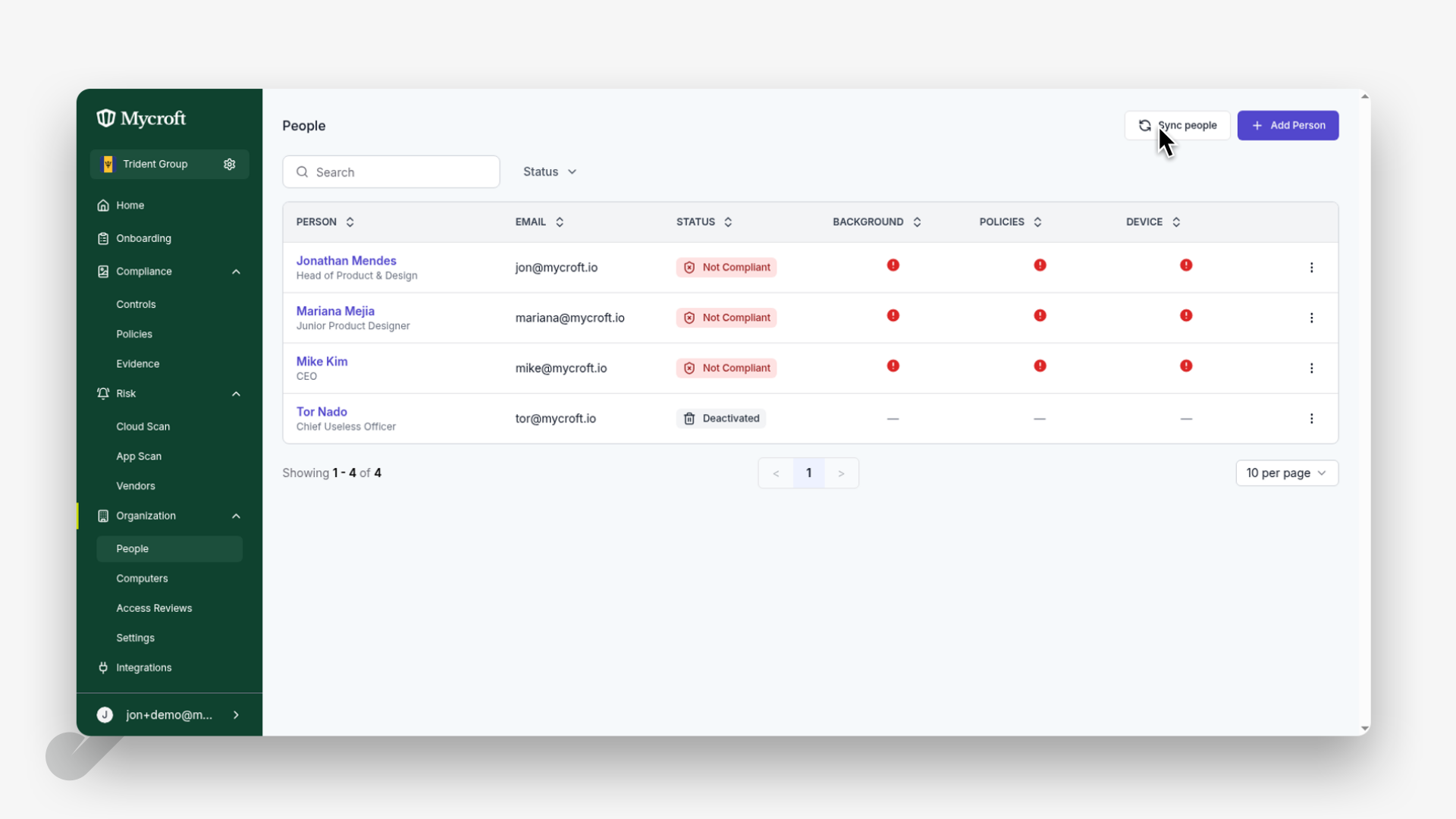
Once you're in the People section, you can start the synchronization process:
Look for the
Sync peoplebutton in the upper portion of the screenClick on the
Sync peoplebutton
This action will open a confirmation dialog where you can finalize the synchronization.
Completing the Synchronization
After initiating the sync process, you need to confirm your action:
Review any synchronization details or warnings in the confirmation dialog (if applicable)
Click the
Confirm & Syncbutton to proceed with the employee synchronization
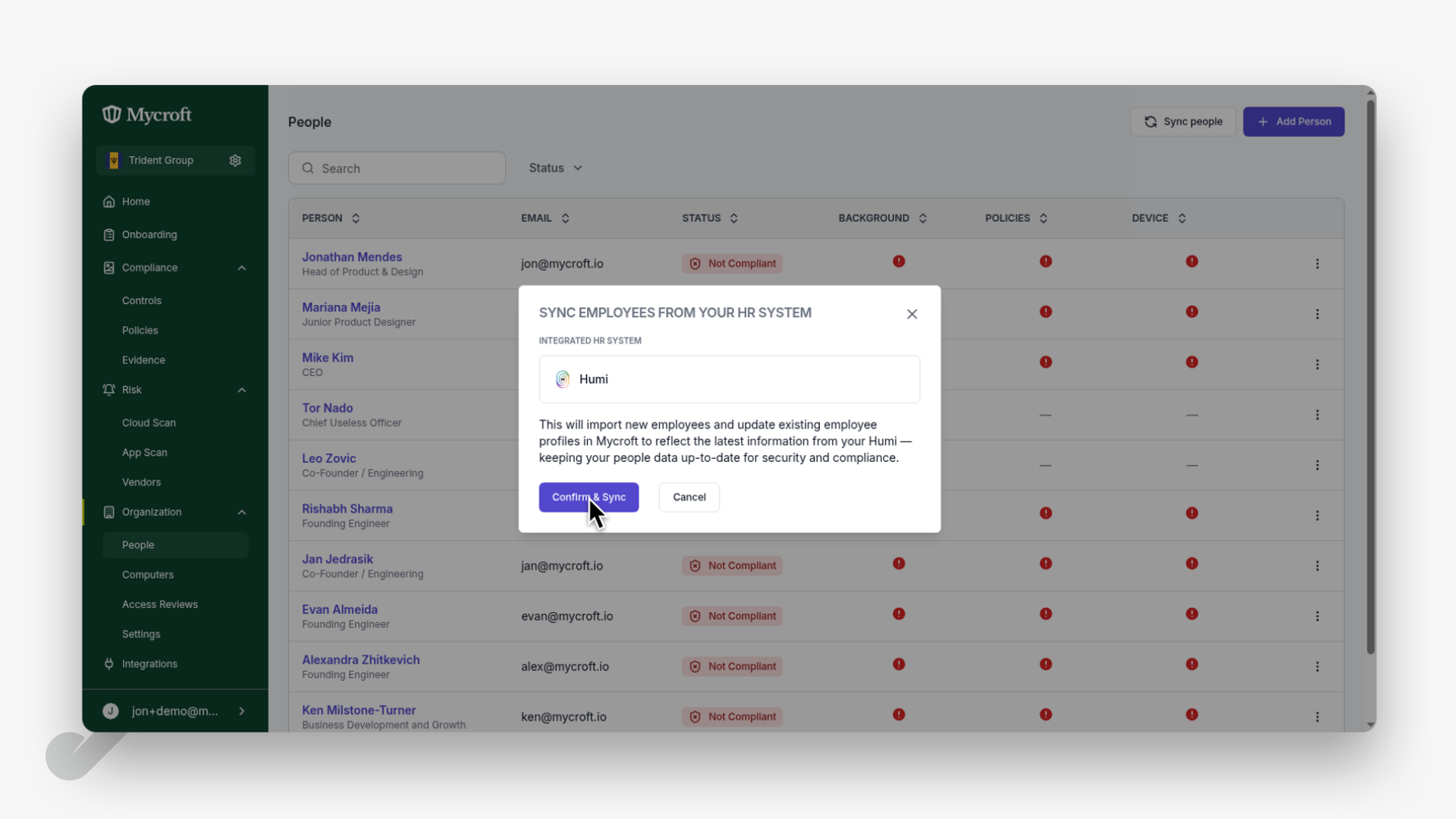
The system will begin syncing employee data. Depending on the amount of data being synchronized, this process may take a few moments to complete.