Updating the Details of a Person
Last updated: May 30, 2025
Updating employee details in Mycroft ensures contact info, roles, and permissions stay accurate as teams evolve. This supports proper access controls, timely notifications, and clear accountability.
Making updates within Mycroft centralizes records, maintains audit trails, minimizes manual errors, and streamlines compliance workflows—keeping user data reliable, teams aligned, and security intact.
Accessing the People Section
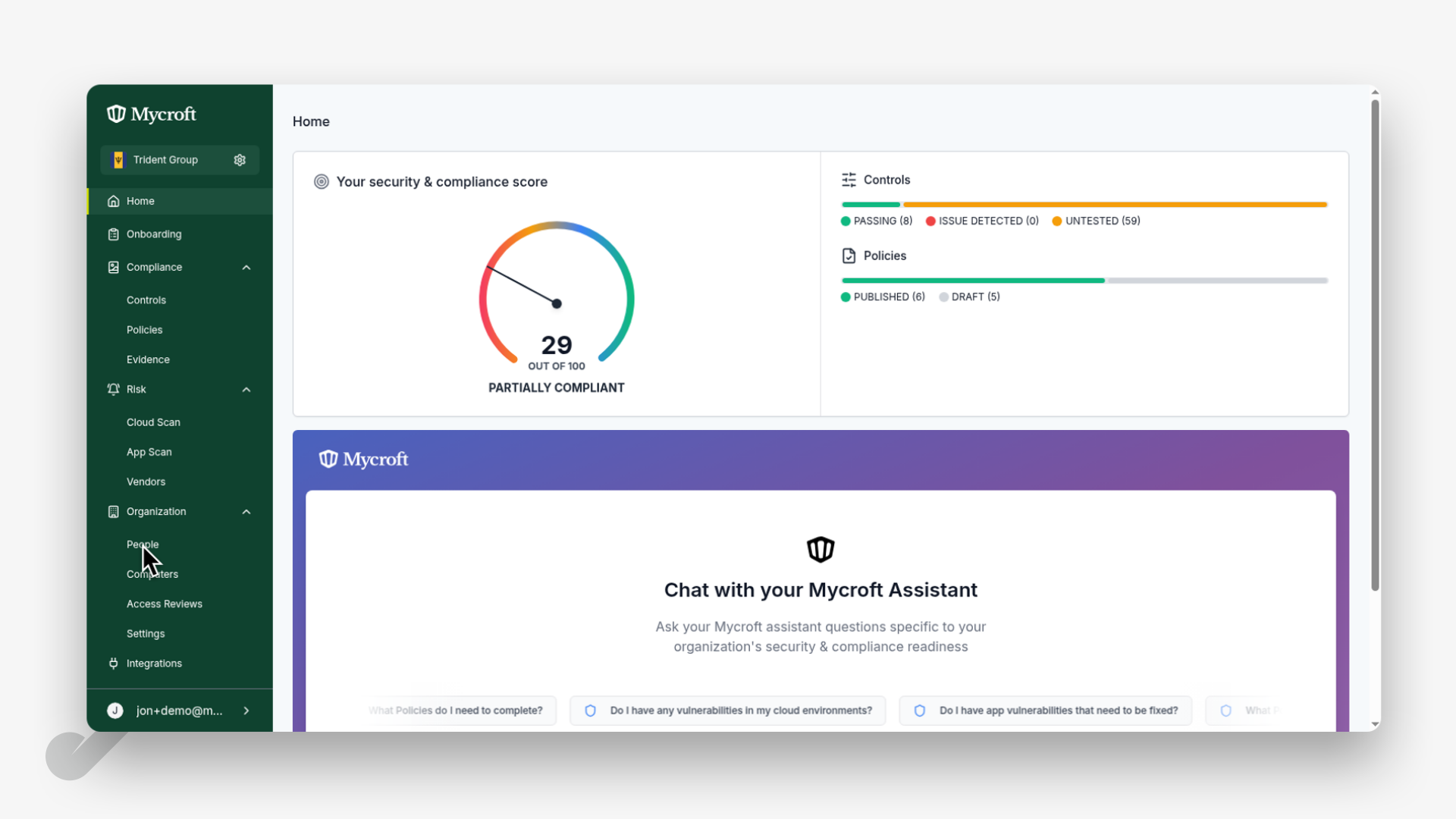
To begin updating a person's details, you first need to access the People section:
Navigate to the main dashboard
Locate and click on the
Peopleoption in the left navigation menu
Searching for a Person
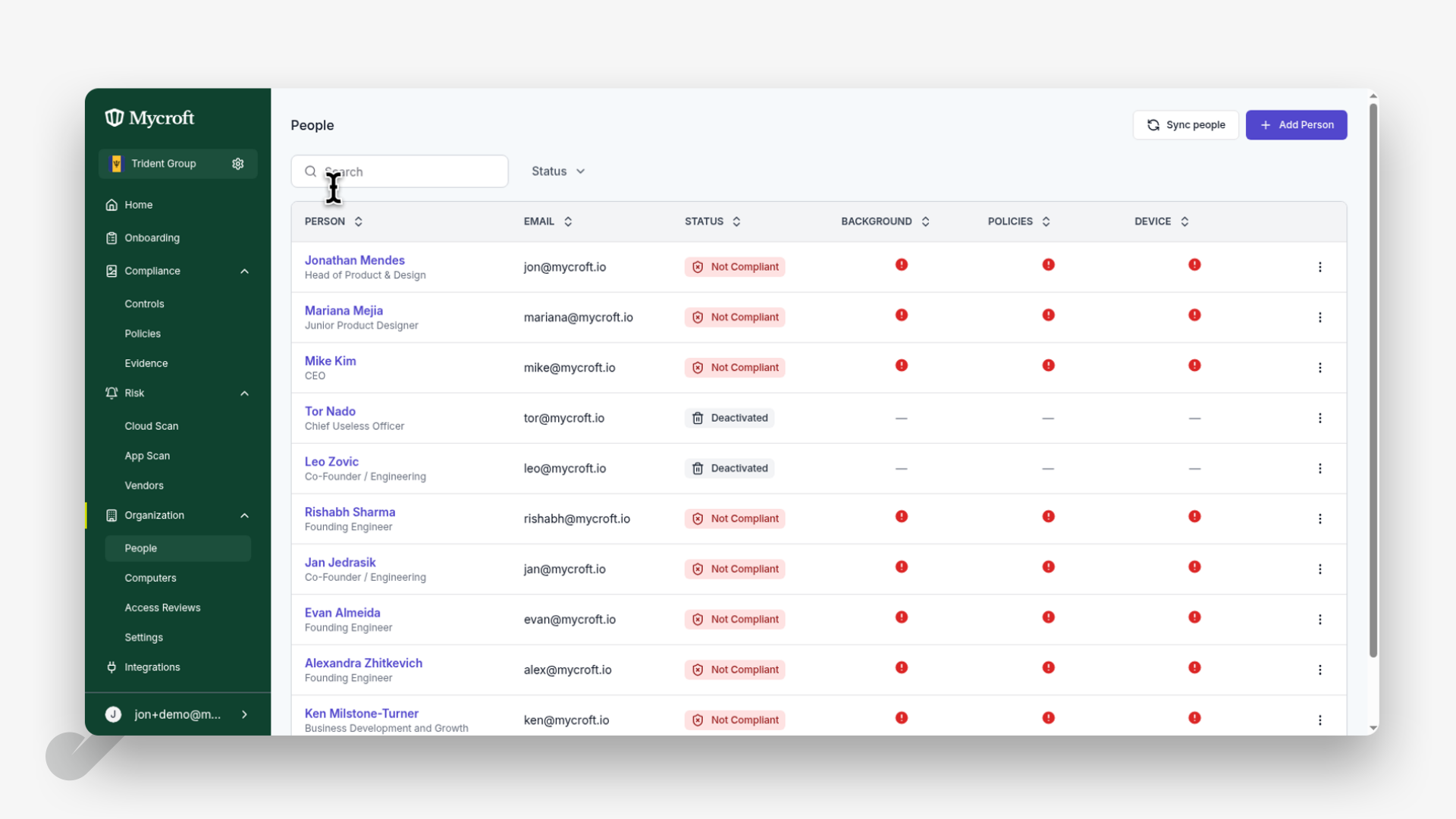
Once you're in the People section, you can search for the specific person whose details you want to update:
Click on the search field at the top of the page.
Type the person's name in the search field.
The system will display matching results as you type.
Accessing the Update Options
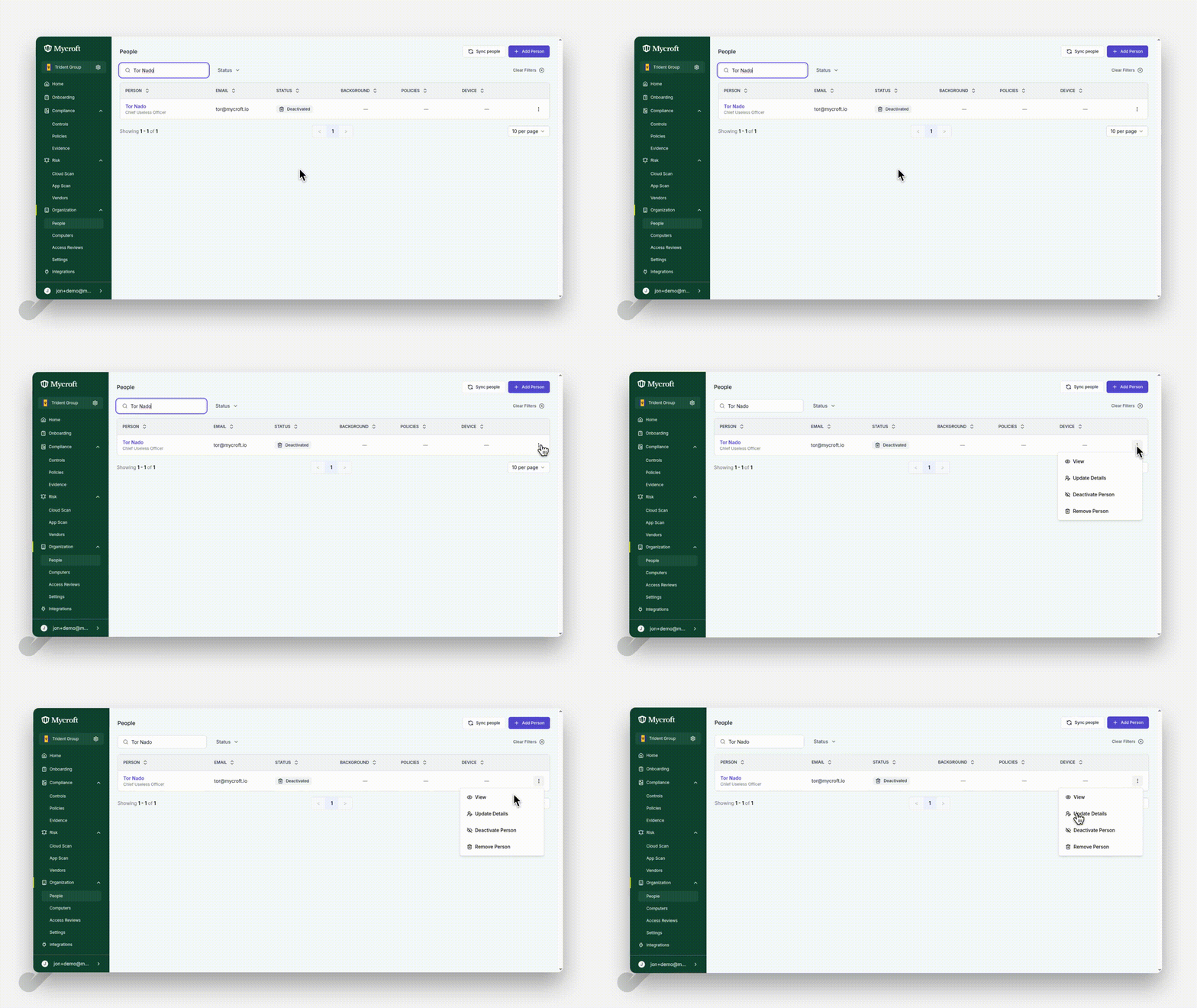
After finding the person in the search results:
Locate the three-dot menu icon (⋮) next to the person's name.
Click on the icon to open the dropdown menu.
Select the
Update Detailsoption from the dropdown menu.
This will open the person's details form where you can make your changes..
Saving the Updated Information
After making the necessary changes to the person's information:
Review all the updated information to ensure accuracy
Locate the
Update Personbutton at the bottom of the formClick directly on the text of the
Update Personbutton to save your changes
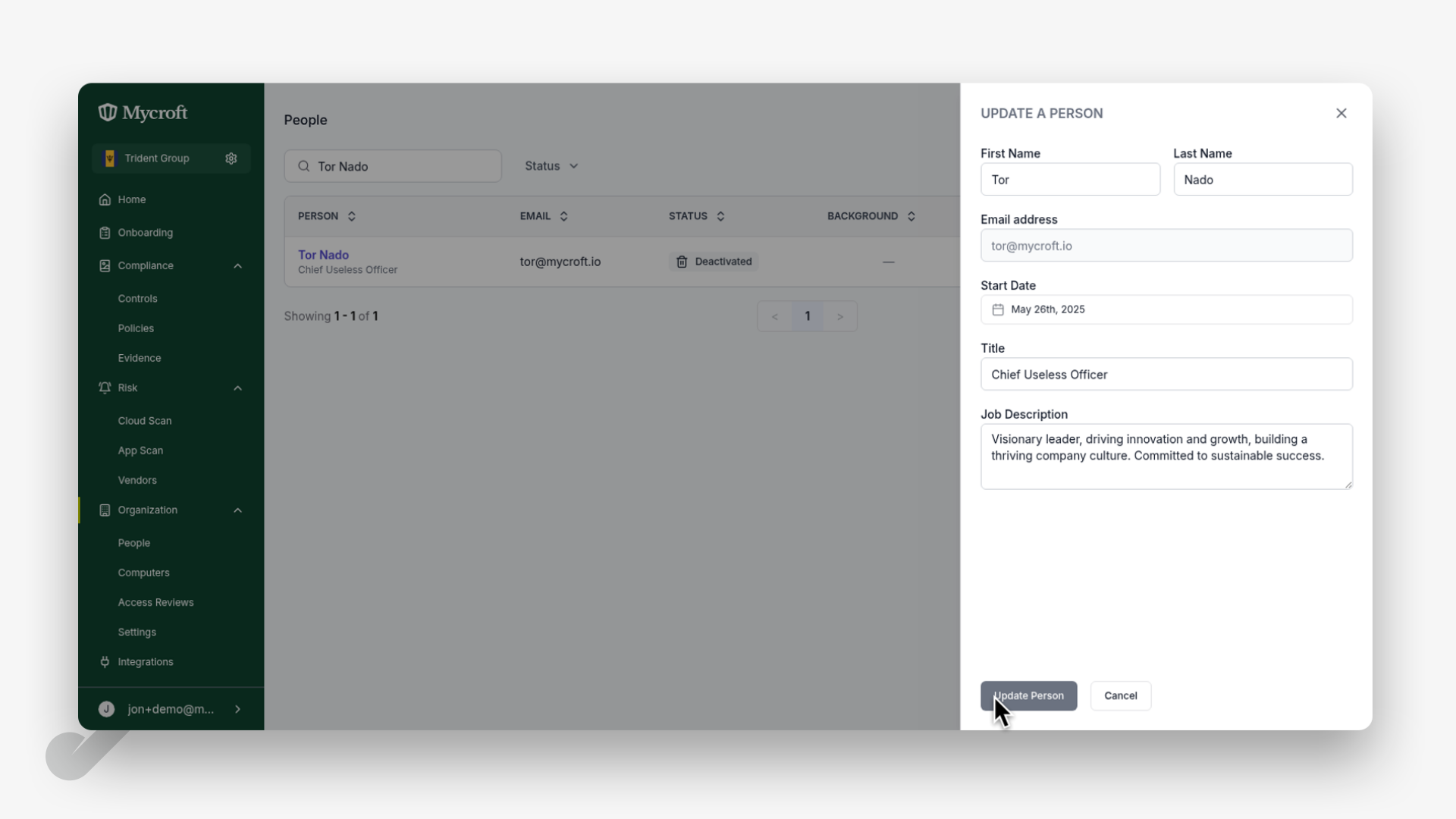
The system will process your request and update the person's details in the database.