Changing the Owner of a Control
Last updated: May 31, 2025
Changing the owner of a control in Mycroft ensures accountability by assigning responsibility to the correct person.
This is important when roles change or projects shift. Keeping ownership up to date helps maintain oversight, supports audit readiness, and ensures timely action on compliance tasks—ultimately keeping your risk management processes accurate and effective.
Accessing the Control
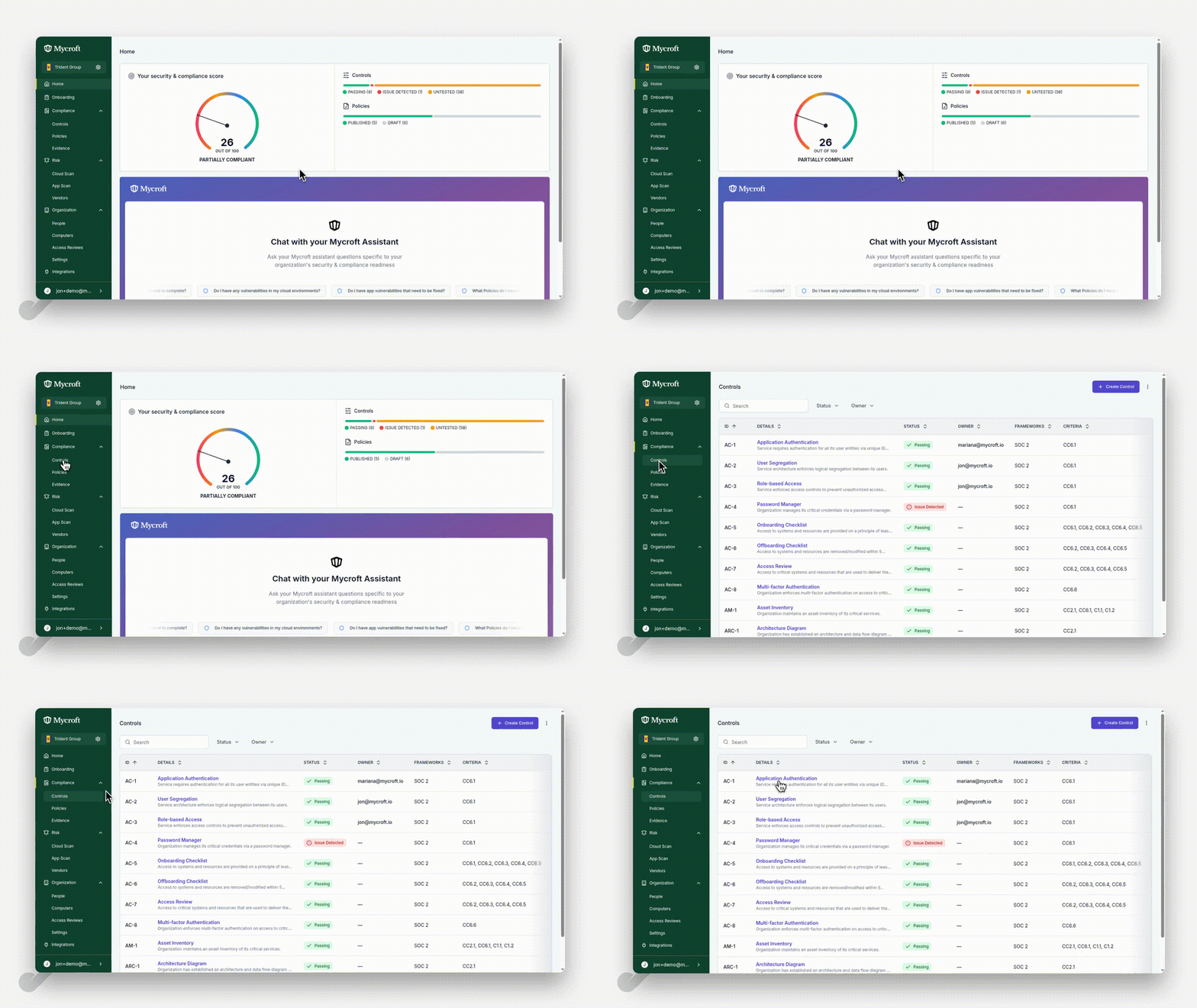
To change ownership of a control, you first need to navigate to the specific control:
Click on the
Controlsoption in the navigation menu.Click on the search bar at the top of the controls page.
Type the control ID you're looking for (e.g.,
AC-1) in the search field.
Initiating the Ownership Change
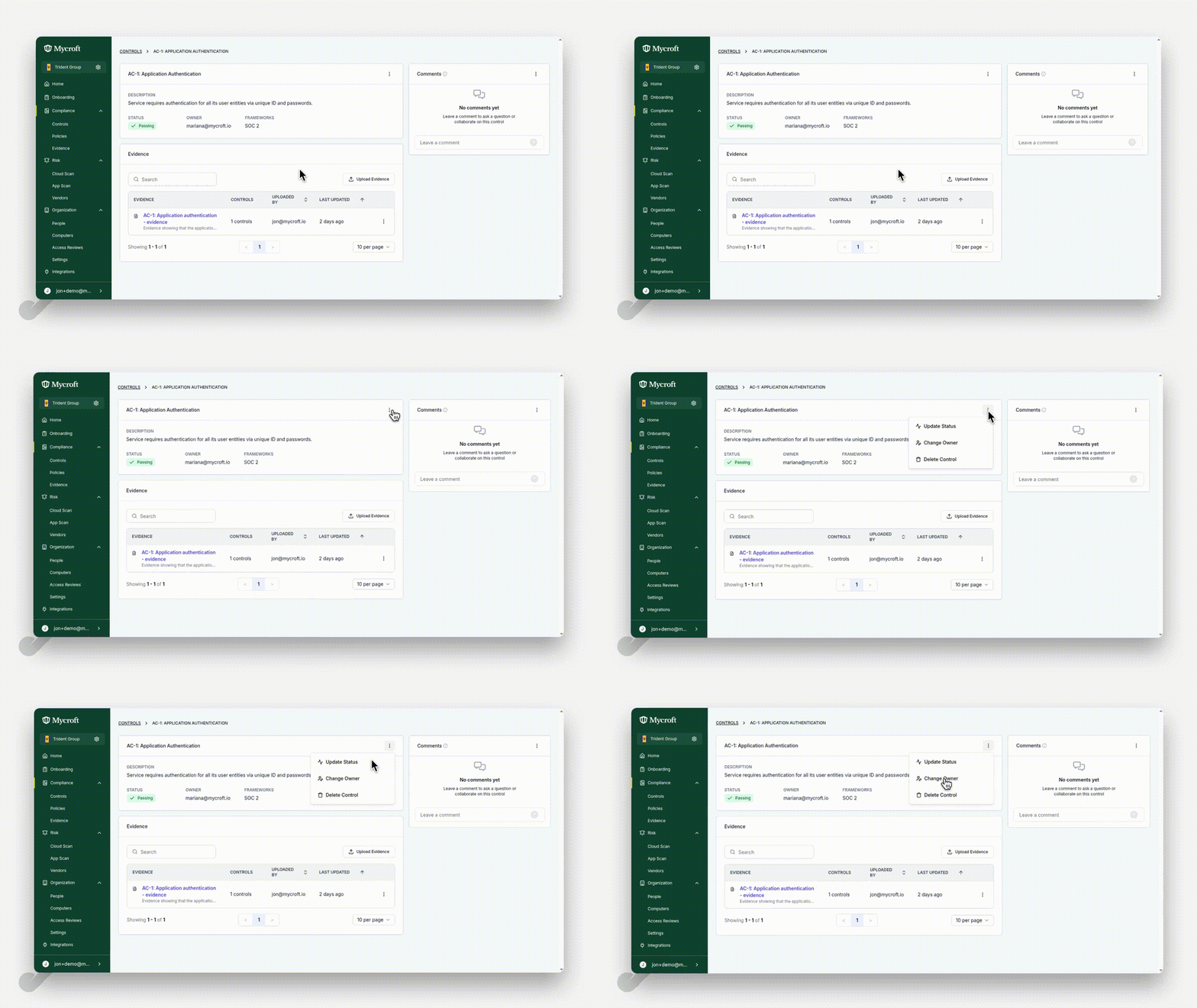
Once you've accessed the control, you can initiate the ownership change process:
Click on the
three dots menu icon(⋮) to display the available actions.Select the
Change Owneroption from the dropdown menu.
Selecting a New Owner and Confirming
After initiating the ownership change, you need to select the new owner and confirm your choice:
Click on the
Select an ownerdropdown to view the list of available owners.Select the desired new owner from the dropdown list.
Click the
Change ownerbutton to confirm and apply the ownership change.
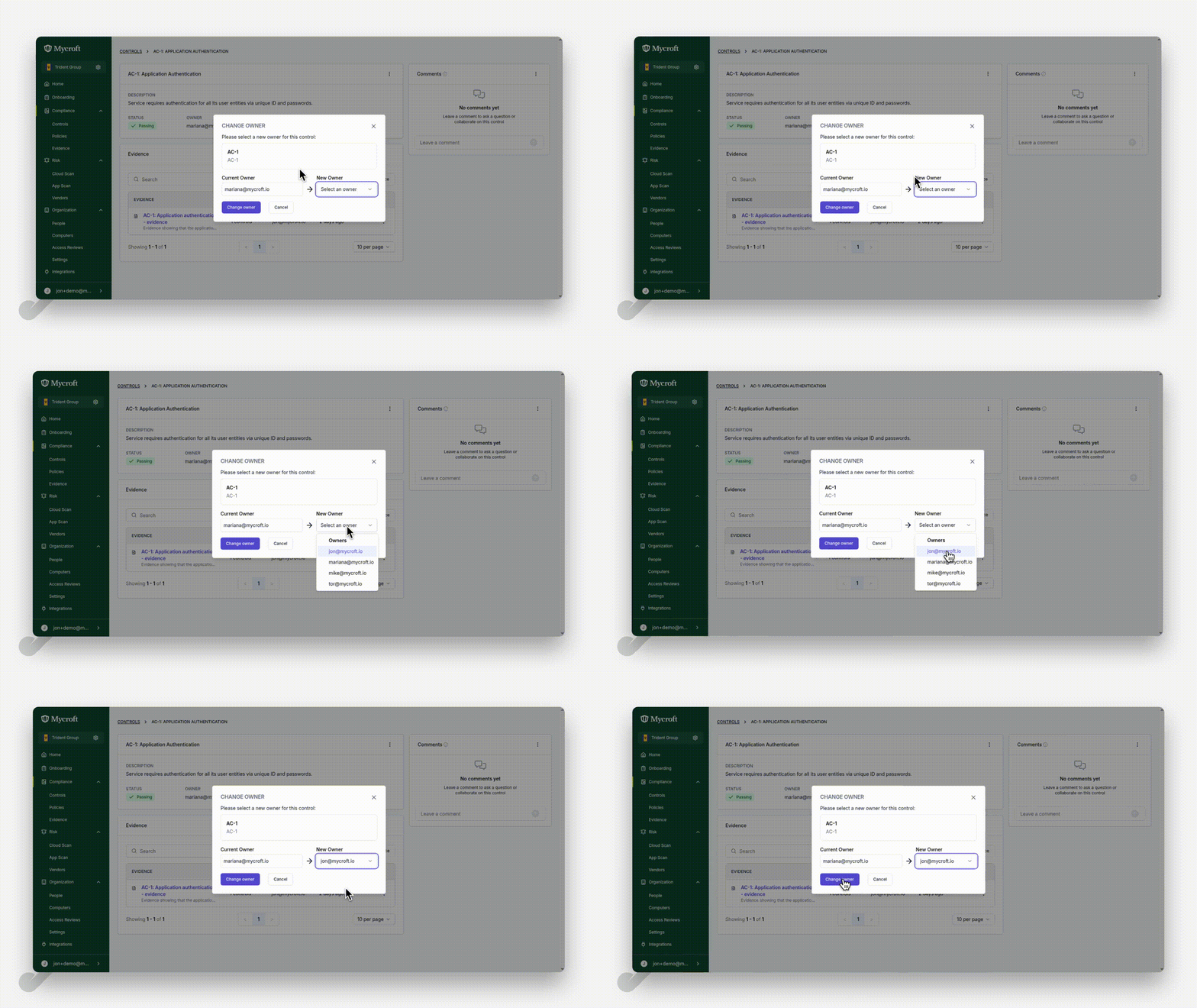
Note: Once confirmed, the control will immediately reflect the new ownership assignment.