Updating Third Party Details
Last updated: November 24, 2025
Updating third party information in Mycroft ensures records stay accurate as your service details change over time.
This document provides a comprehensive overview of the process to update details for third parties in the Third-Party Risk section. Follow the steps below to ensure that all necessary changes are accurately made and saved within the system.
Accessing Third Party Risk
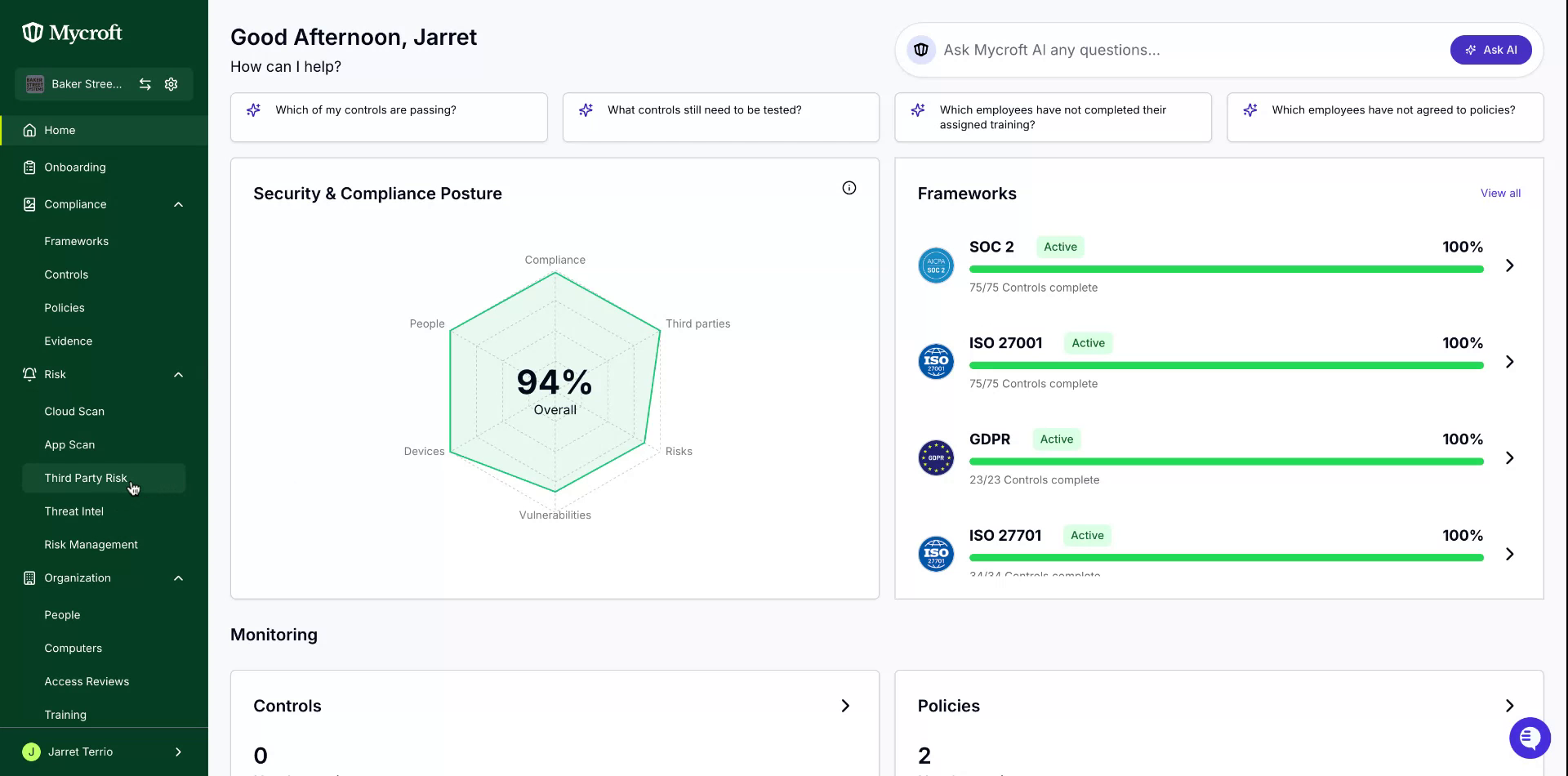
Navigate to the Third party section by selecting the
Third Party Riskoption from the navigation menu on the left.
Opening the Detail Edit Interface
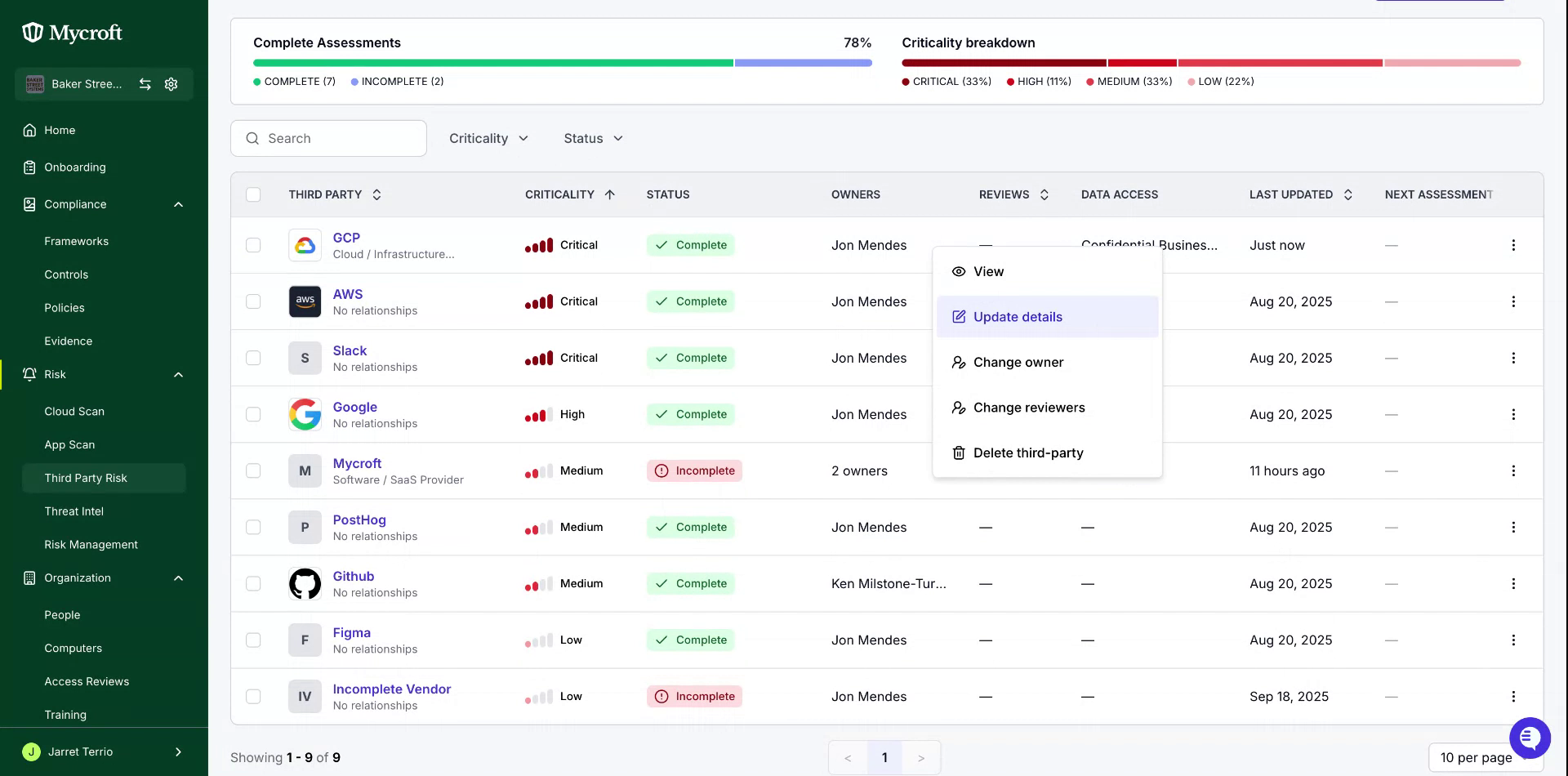
Within this section, all currently tracked third parties are displayed. Locate and select the entry you wish to edit, then right-click and choose the "Update Details" option from the menu.
Select
Update Detailsfrom the dropdown menu.
Updating Fields
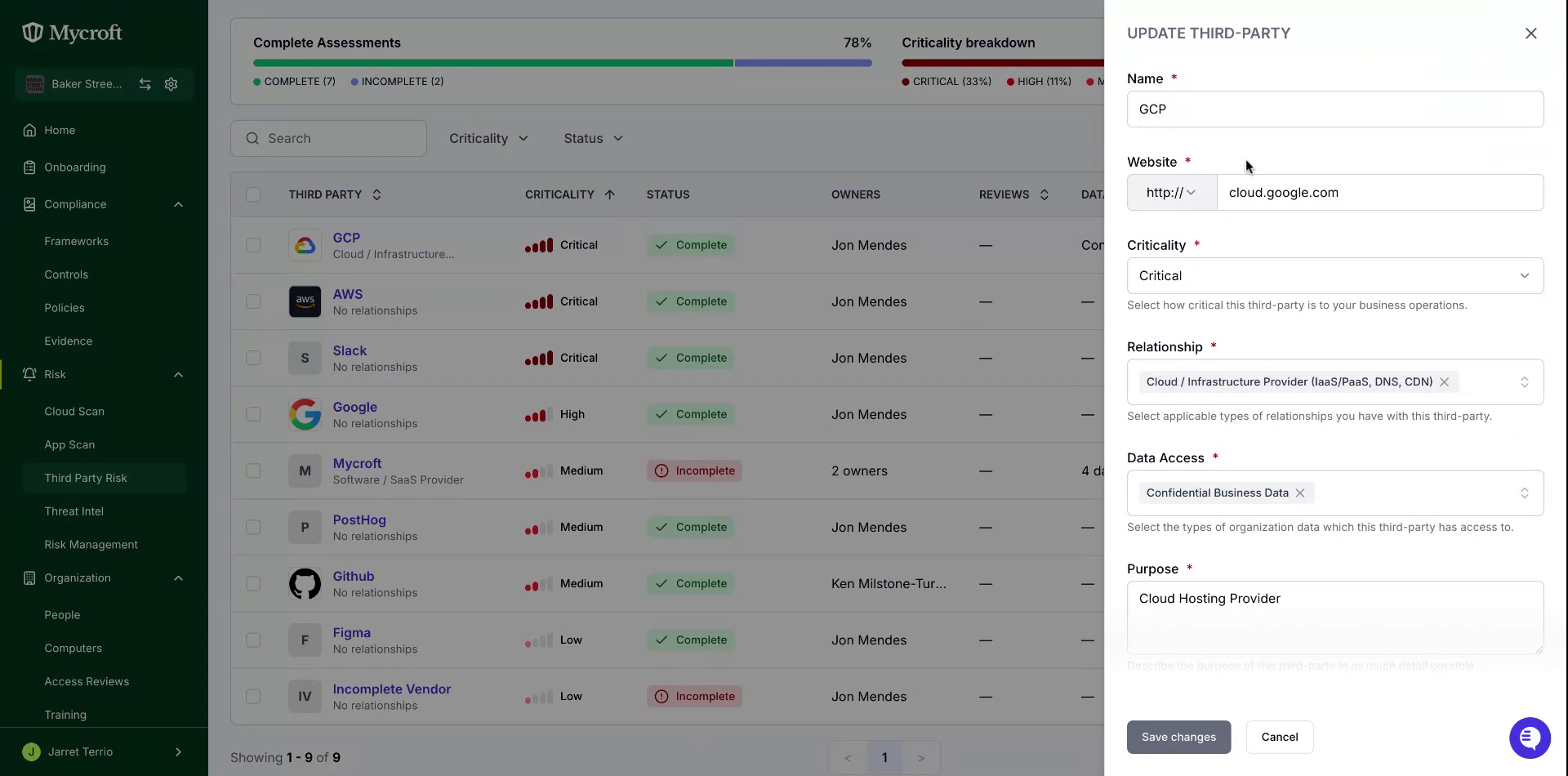
In this details screen, make any required changes to the vendor details.
Note: The fields marked by a red asterisk are required, and will prevent saving if left empty.
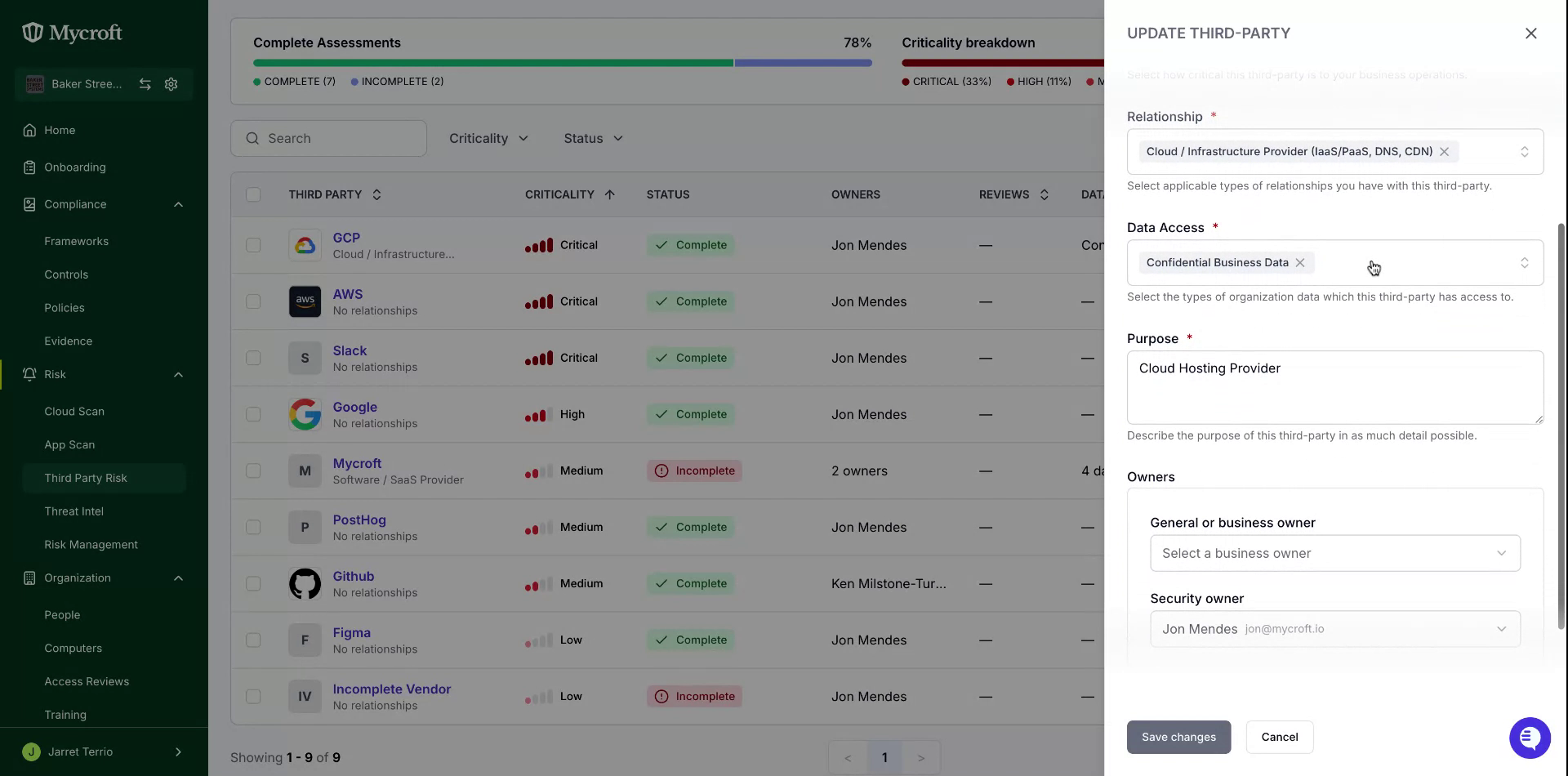
After making all necessary edits, click the
Save changesbutton at the bottom of the form to save your changes.
Note: After clicking the update button, you should see a confirmation message indicating that the vendor information has been successfully updated.