Assigning Owners and Reviewers to a Third-party
Last updated: November 24, 2025
Changing the owner of a third party in Mycroft ensures the right person is responsible for managing the service relationship, assessments, and ongoing compliance.
This is crucial during role changes or team transitions. Updating ownership within Mycroft keeps records accurate, maintains accountability, and ensures smooth, uninterrupted oversight of third party activities.
Changing Owners
To change the owner of a third-party entry in Mycroft, begin by navigating to the Third Party Risk section under Risk.
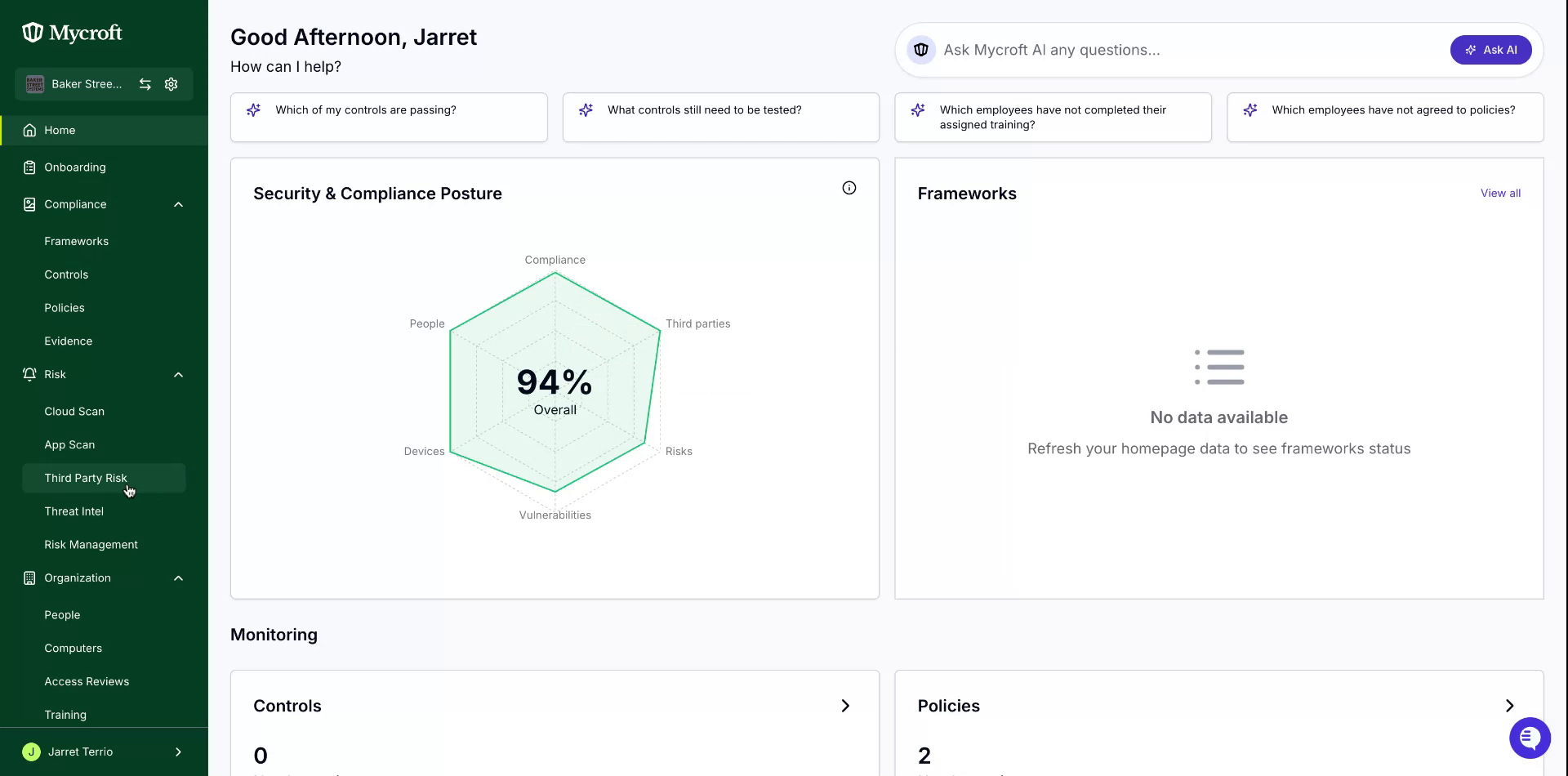
Within this section, review all the entries related to your corresponding services.
Select the entry you wish to edit, and right-click on it.
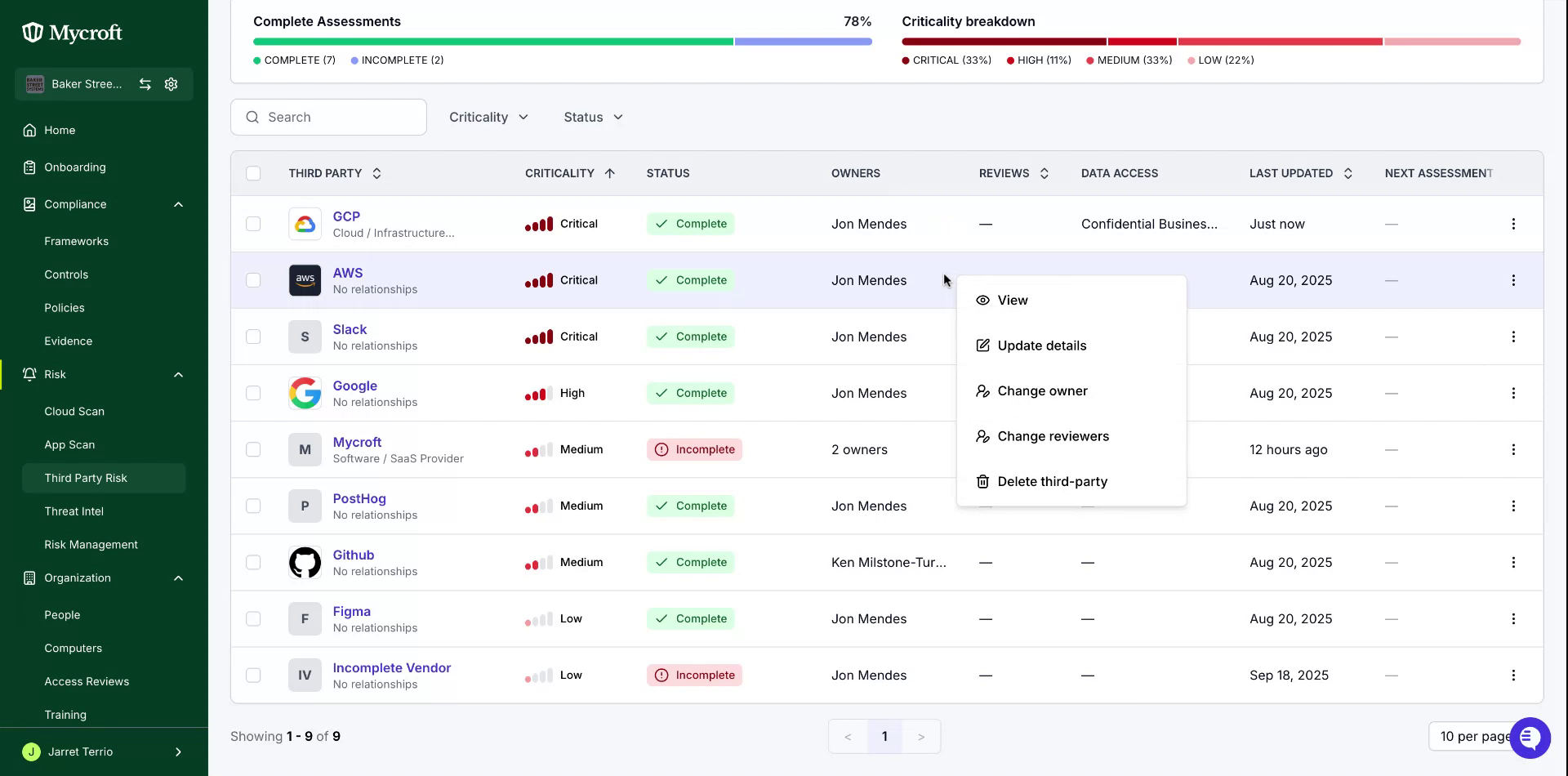
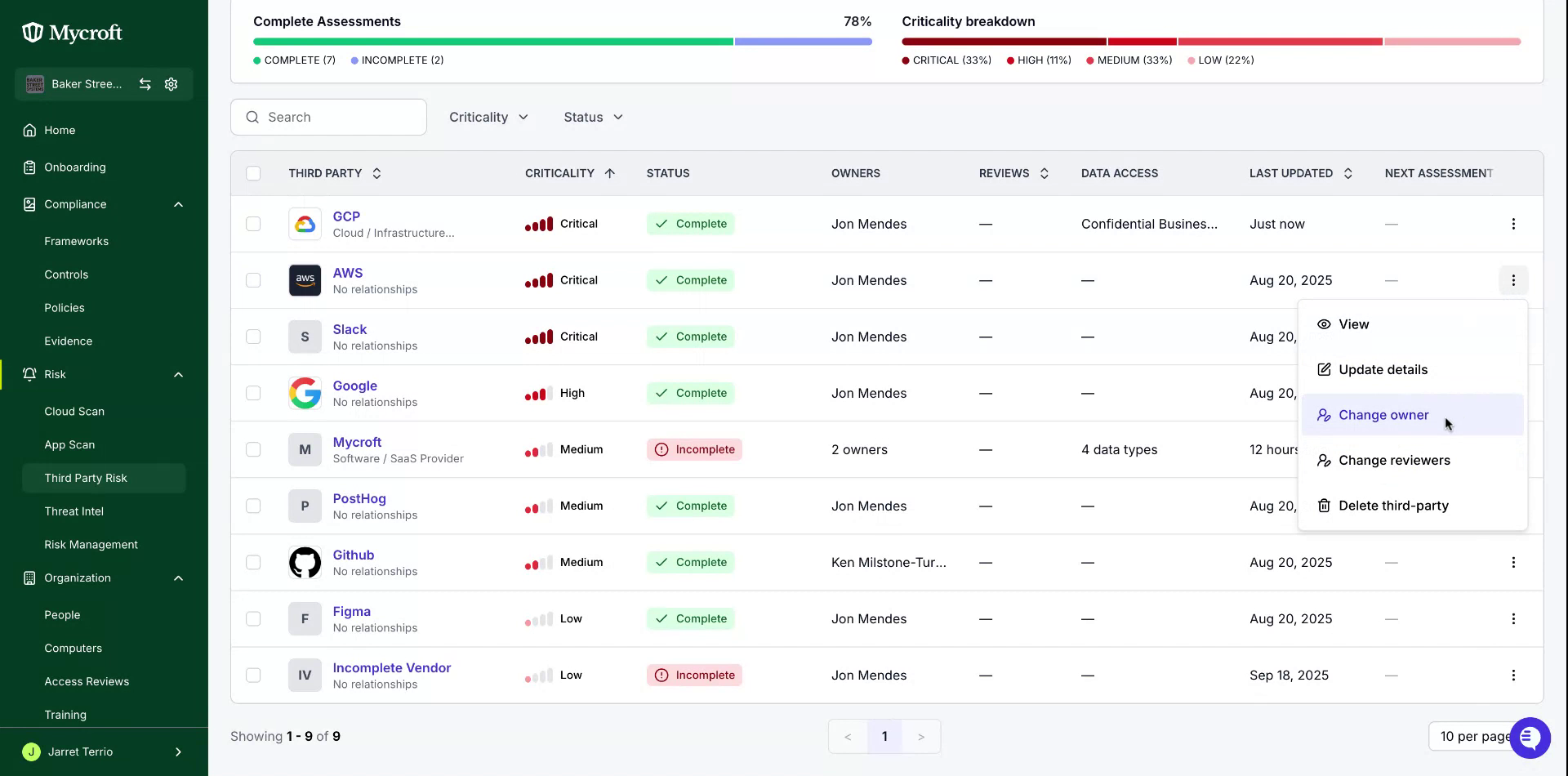
3. In the menu that appears, locate and select the "Change Owner" option.
Upon selecting this option, choose a new owner from the list provided to assign to the entry.
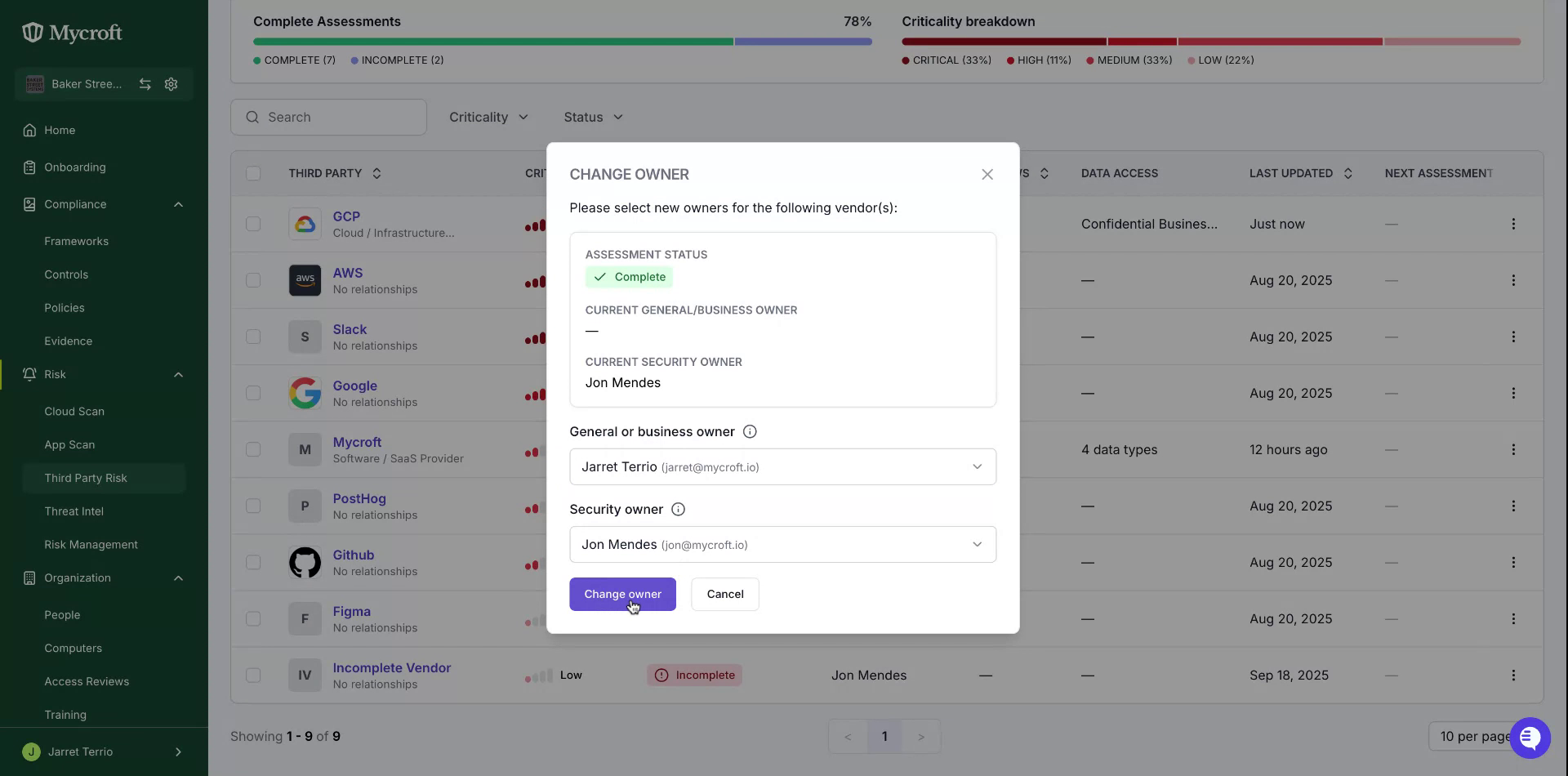
Once you have made your selection, click on "Change Owner." This action will update Mycroft with the new owner's information.