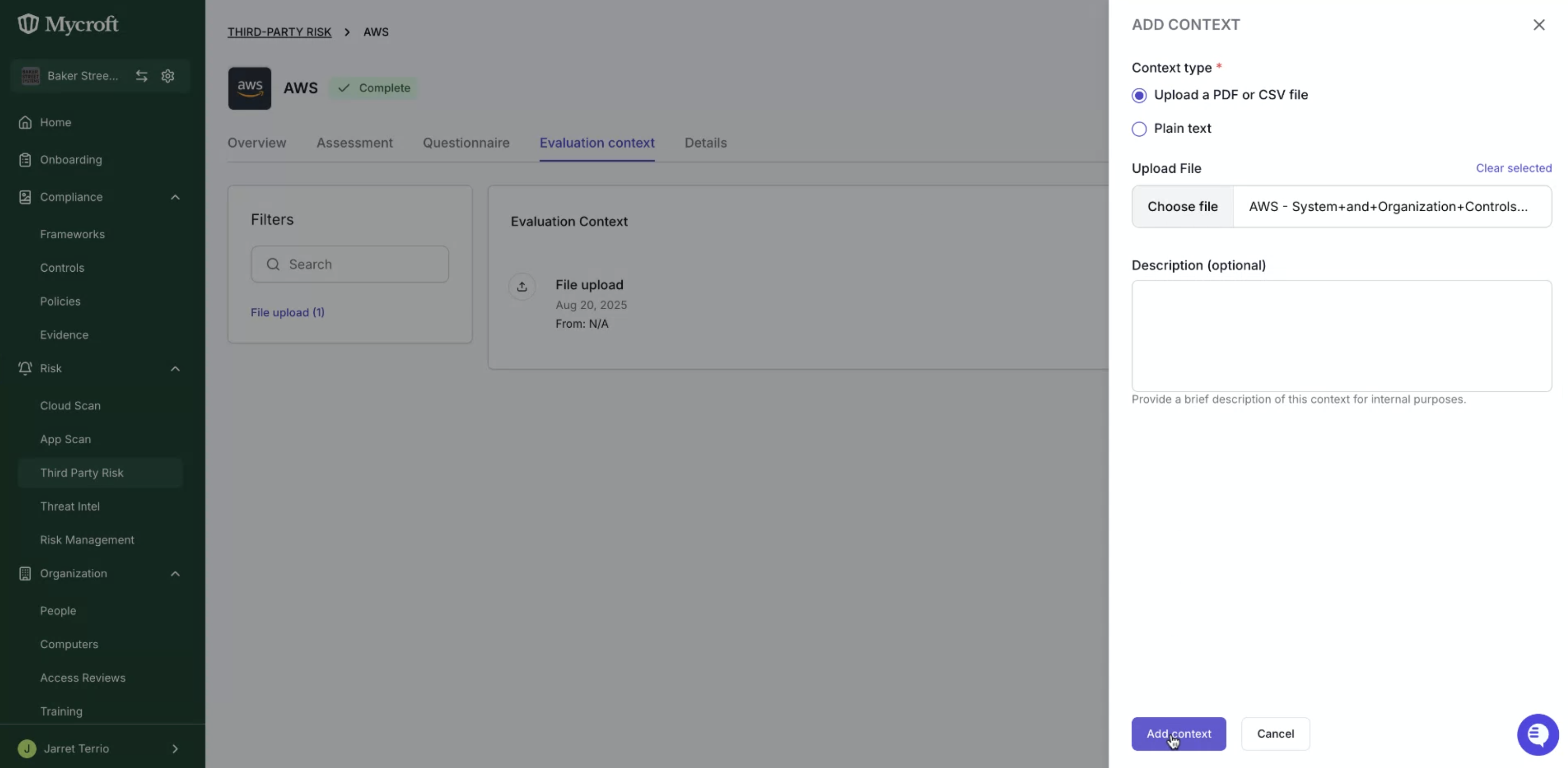
Uploading a Third Party's Compliance Report
Last updated: November 24, 2025
Uploading a third party's compliance report into Mycroft enables the platform’s AI agent to automatically generate a risk assessment based on the contents of the report. This helps streamline third-party risk evaluations and ensures assessments are grounded in verified audit documentation.
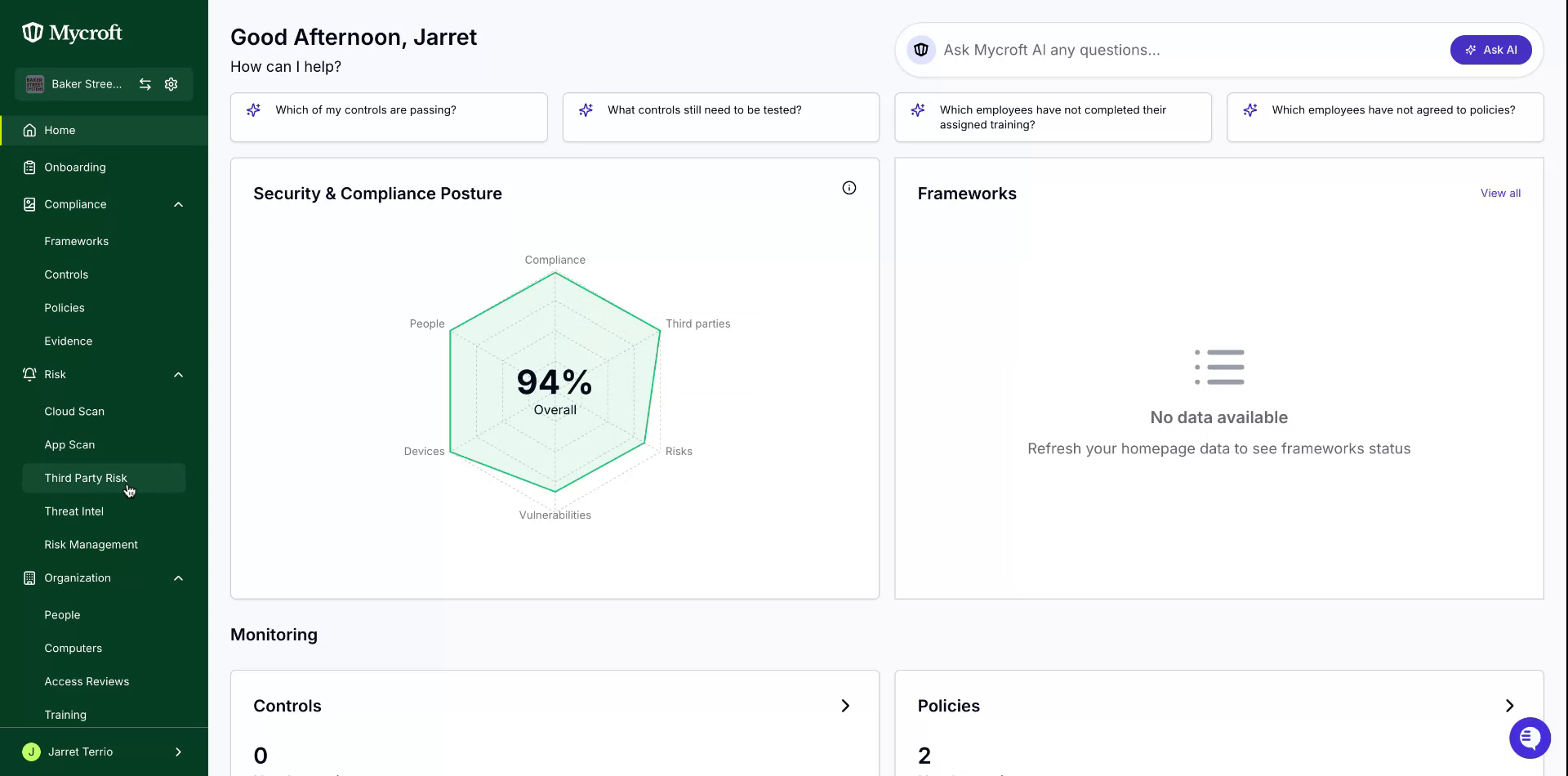
To begin the uploading a compliance report to your third-party service, navigate to the "Third-Party Risks" section located under "Risks."
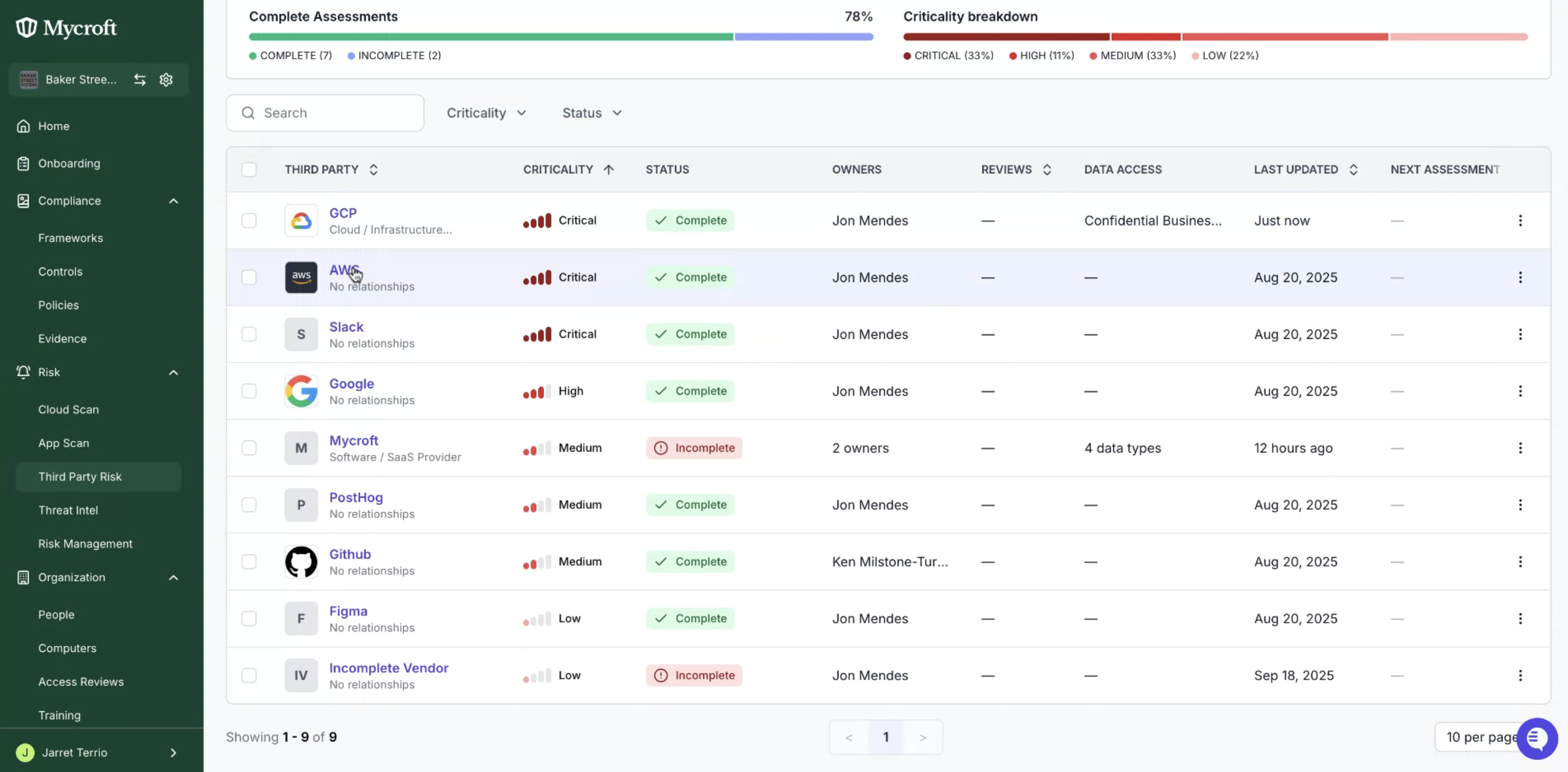
Select the corresponding third party entry to attach the report to.
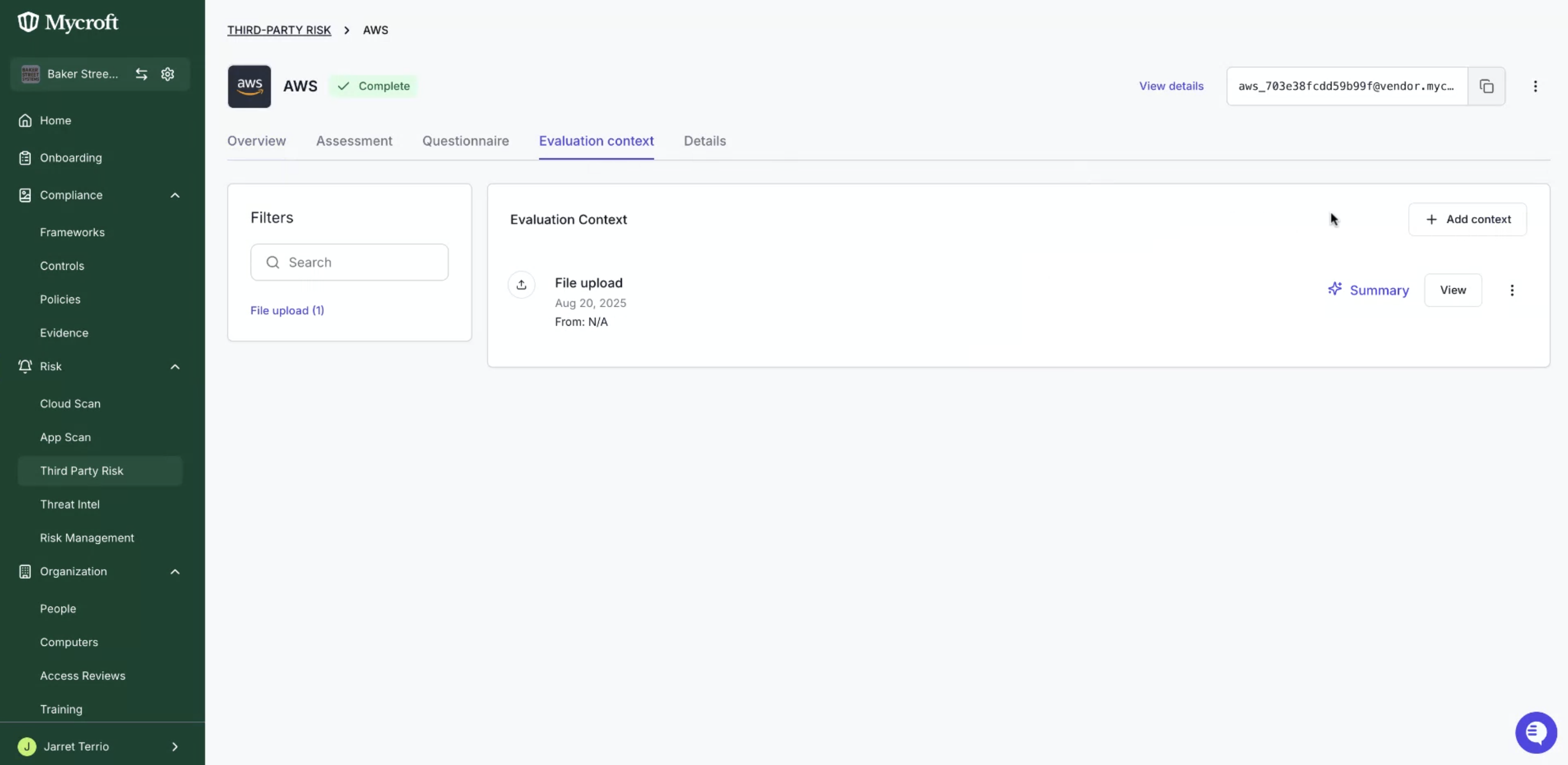
4. Under "Evaluation Context" Select the "Add context" button.
Select the compliance report to be uploaded via the Choose file button.
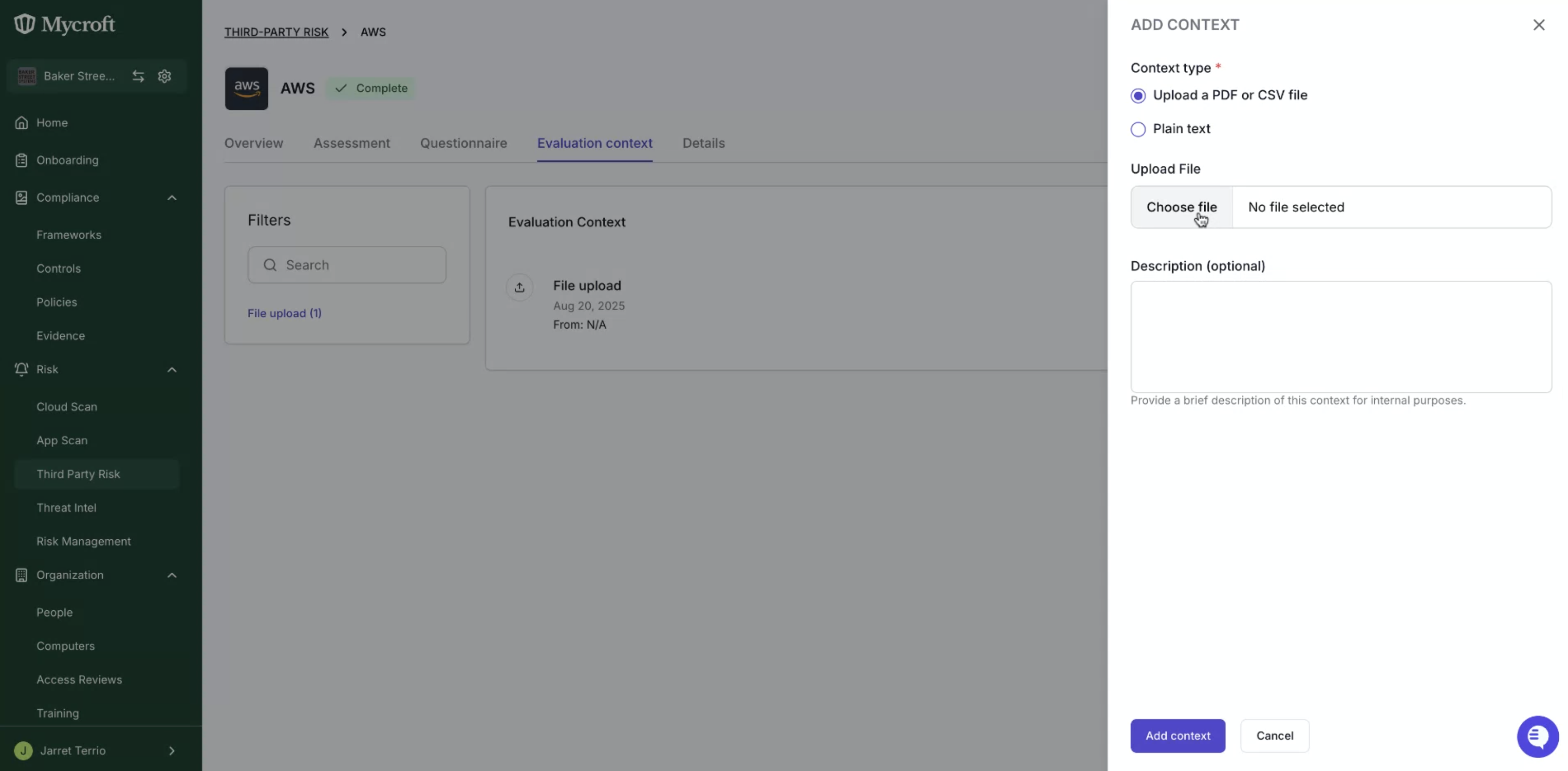
After uploading your file and adding in a description, select the "Add context" button to finalize the upload.