Removing a Third Party
Last updated: November 24, 2025
Removing a third party in Mycroft helps maintain a clean, accurate vendor roster by eliminating outdated, inactive, or redundant entries. It reduces clutter and minimizes risk exposure from obsolete partnerships.
This document outlines the procedure for removing a third-party service from Mycroft. The instructions guide you through accessing the relevant section, selecting the desired service to delete, and confirming the action, ensuring you understand the irreversible nature of this process.
Removal Process
To begin the removal process of a third-party service from Mycroft, navigate to the "Third-Party Risks" section located under "Risks."
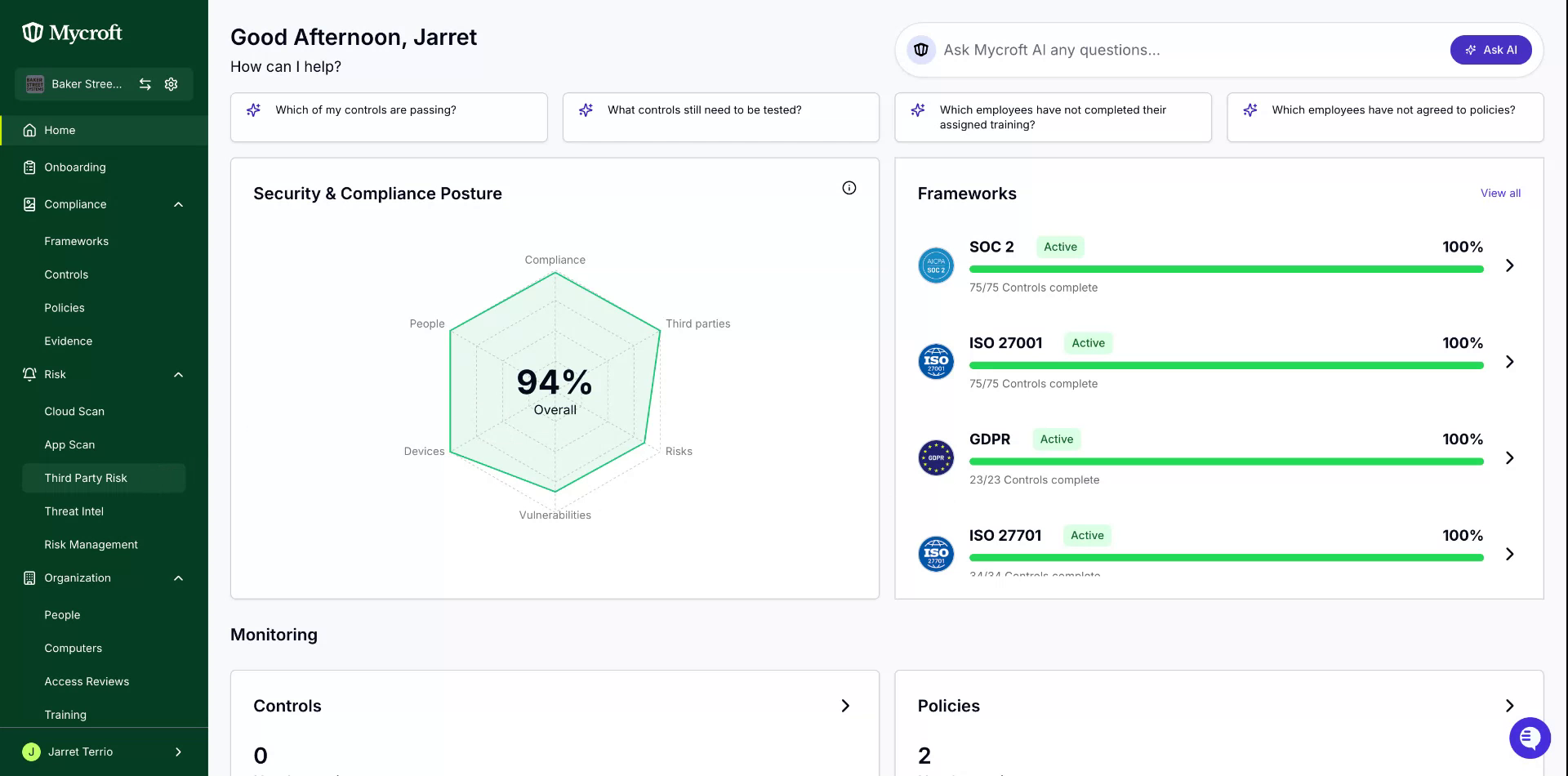
Within this section, you can view all currently tracked third-party services.
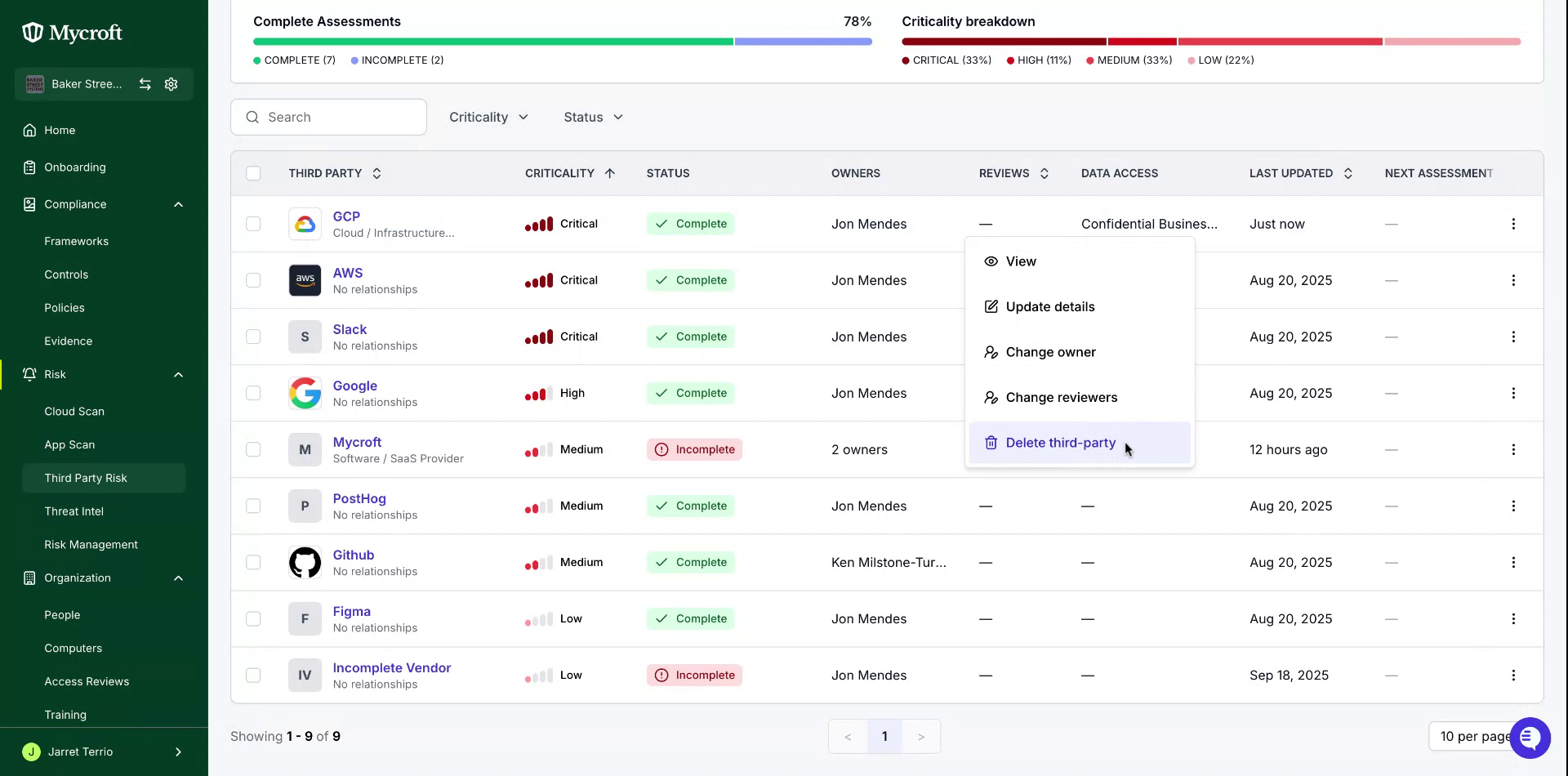
To remove a service, access the kebab menu located on the right or right-click on the desired entry.
A dropdown menu will appear, presenting you with the option to delete the third party.
After selecting the option to delete, a confirmation screen will be displayed.
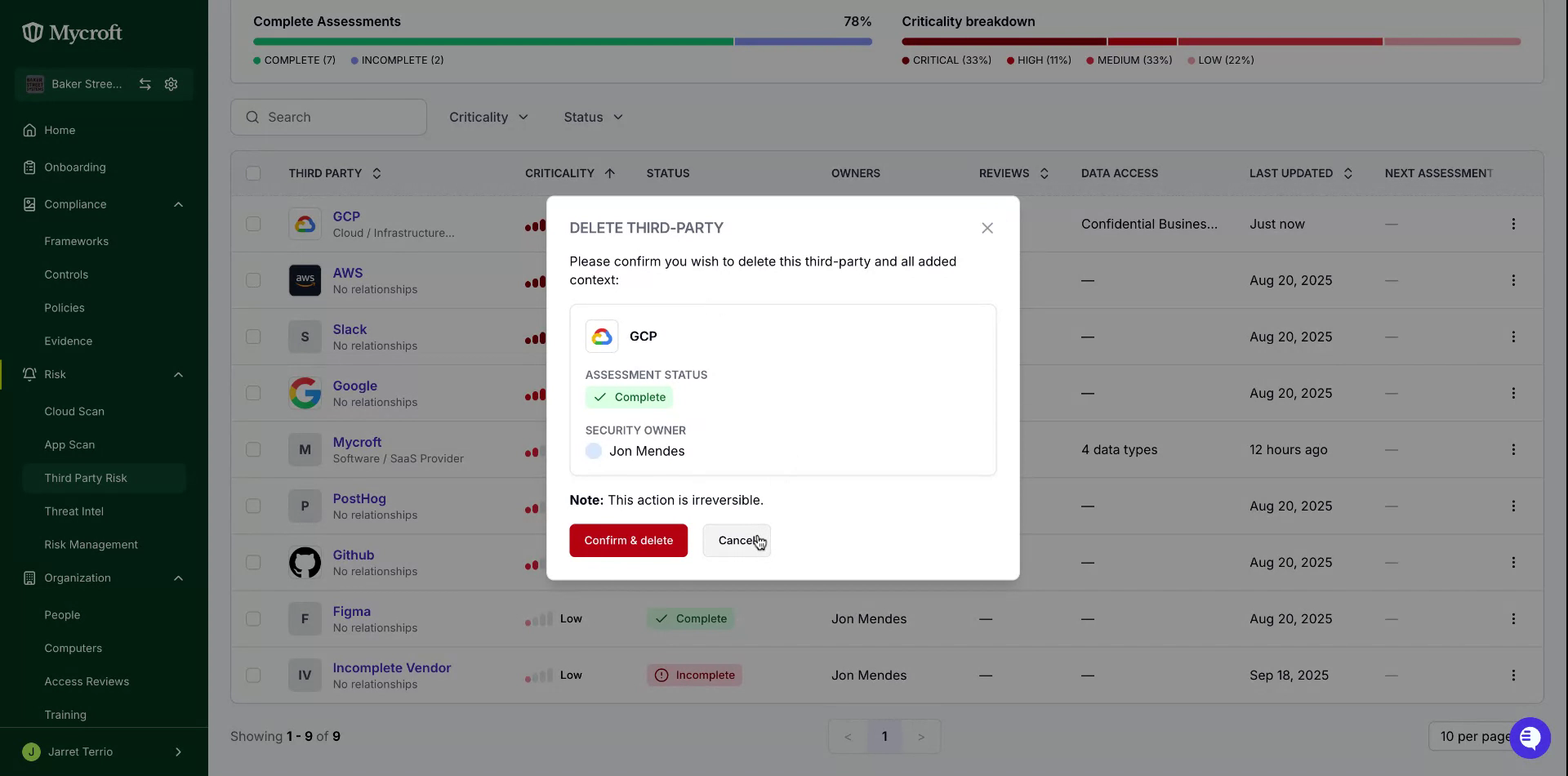
Note: Please be aware that by clicking the "Confirm and Delete" button, you are executing an irreversible action.